Merge Companies
Objective
To consolidate two (2) or more individual company/vendor records into a single record by merging them together.
Background
If you have duplicate companies listed in the Company level Directory, you can merge the company records into a single record. When merging companies, you are asked to select a 'primary' company in which to merge the other company record(s). Upon merging, all items and users associated with the merged companies will be associated with the primary company.
Things to Consider
Warning
Merging companies is an action that cannot be reversed. All information not specified to be kept will be permanently removed and is NOT recoverable.- Required User Permissions
- The primary company will inherit all associated users as well as the following information from the companies being merged (fields not listed will remain the same for the primary company):
- Tender comments and star ratings
- Cost codes
- Insurance
- Trades
- Project history
- The following companies cannot be merged:
- Two connected companies.
- Two companies currently listed on the same tender package or tender form.
- Companies that 'Restrict Edits to the Schedule of Values and Contract Company' for Prime Contracts, Purchase Orders, or Subcontracts, when the primary company is linked to an approved Prime Contract or Commitment. If you need to merge the company, clear the checkboxes for this setting while merging and mark them again once the merge is complete. See Update the Tool Settings for Contracts.
- When merging a local company and a connected company, the connected company must be be the 'primary' company. See What happens when companies and users are added from the Procore Construction Network to the Company Directory?
- Any data that is NOT selected when merging will be permanently removed. However, if merging with a connected company, you can still view all the connected company's information on their Public Profile.
- When a merge occurs, changes are tracked in the Change History of the primary company and in the Merge History.
- For companies using the
 ERP Integrations tool: Show/Hide
- Duplicate vendor/company must be consolidated (see Consolidate Duplicate Vendors in the Company Directory) or merged in Procore before your data is synced with an ERP-integrated system (e.g., Sage 300 CRE or QuickBooks).
- If your company has enabled the ERP Integrations tool for a third-party accounting system, the Company Merge subtab will prompt you to choose a Sage ID if one or more of the vendors selected for merging are synced with Sage. Merged vendors which are not selected as the primary vendor will be unlinked and archived in the ERP Vendors subtab. (Note: For example, if Vendor A and Vendor B are both linked with Sage when they are merged, and Vendor A is chosen as the primary vendor, Vendor B will then be unlinked from Sage and archived in the ERP Vendors subtab.)
Steps
- Navigate to the Company level Directory tool.
- Click the Configure Settings
 icon.
icon. - Click Merge Companies.
- Review the instructions.
- Click Begin Merging.
- Identify the companies you want to merge.
- To change the sort order of the table, click a column header. The default sort order is in ascending alphabetical order by Company Name.
- To search for specific companies, enter their name(s) in the 'Search for Companies' field and click Search.
- To filter the list to show 'exact matches only', select one of the following options in the 'Exact Match' drop-down menu:
- Company Name
- Address
- Phone
- Fax
- Mark the checkboxes for the companies you want to merge.
- Click Next Step.
- Select the 'Primary' company that the other record(s) will be merged into.
Note
- If merging a connected company, the connected company must be the primary company.
- If merging a connected company with a company linked to your third-party ERP system, the connected company still must be the primary company. However, the ERP Vendor ID is maintained and is added to the merged record. Other Procore data, such as Commitments, attributed with the original ERP vendor record is merged as well.
- If merging a company that is linked to your third-party ERP system, the link for the primary vendor will be saved and the other vendor(s) will be unlinked from the ERP system and then archived in the 'Vendors' tab of the ERP Integrations tool.
Example
Vendor A and Vendor B are both linked with an ERP system and you want to merge the records. If you specify Vendor A as the primary company, the information from Vendor B will be moved into Vendor A. Then the Vendor B record will be unlinked from ERP and archived in the Vendors subtab of the ERP Integrations tool. The record for Vendor B will also be permanently removed from the Company Directory - Select each value that you want to apply to the primary company.
- Click Next Step.
- Add or edit any information for the primary company record.
- Click Merge. During the merge, all of the companies involved in the merge are temporarily locked to prevent them from being used in another merge until the initial merge is complete. You can merge other companies while the initial merge is still in progress.
- Optional: You can click Cancel if you want to cancel the merge.
Tip
After 24 hours, if you see a Merge Error, click Retry to retry the merge, or Cancel. If you continue to get a merge error, contact support.
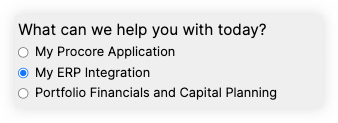
Note: If your error message references your ERP integration, fill out the support form for My ERP Integration.