Upload Files or Folders to the Company Level Documents Tool
Objective
To upload files or folders to the Company level Documents tool.
Things to Consider
- Required User Permissions:
- 'Standard' or 'Admin' level permissions on the Company level Documents tool.
- Additional Information:
- There is a 50GB file size limit for individual uploads.
- When you upload files to a folder in the Documents tool, Procore will automatically check the folder for existing files. If a file with the same name is found, you can upload it as a new version of the existing file. See Upload New File Versions.
- We recommend uploading files and folders directly from your computer’s local drive. Files from other sources, including Shared drives (such as ODrive or Google Drive) or email attachments, should be downloaded to your computer before uploading to Procore.
- If any of your documents are compressed in a Zip file (.zip), make sure to extract the files on your computer before uploading them so that they can be viewed in Procore.
Steps
- Navigate to the Company level Documents tool.
- Click on the folder in the Documents tool that you want to upload files or folders to.
- After selecting files or folders on your computer, drag and drop them to the center panel of the Documents tool.
Tip! You can also use this method to upload empty folders from your computer instead of having to create the same folders manually in the Documents tool.

OR- Click the + New drop-down menu.
- Choose whether you want to upload files or folders:
- Click File Upload to select files to upload.
- Click Folder Upload to select folders to upload.
- Select the files or folders you want to upload from your computer.
Note: Empty folders cannot be uploaded during this step. They can only be uploaded using the drag-and-drop method shown above. - Click Open.
Notes:- A progress indicator is shown for each upload and the system returns to the Documents tool page after the upload is complete.
- If you are uploading one or more files with the same filename as an existing file, you are prompted to choose whether you want to upload them as new versions, or rename the files.
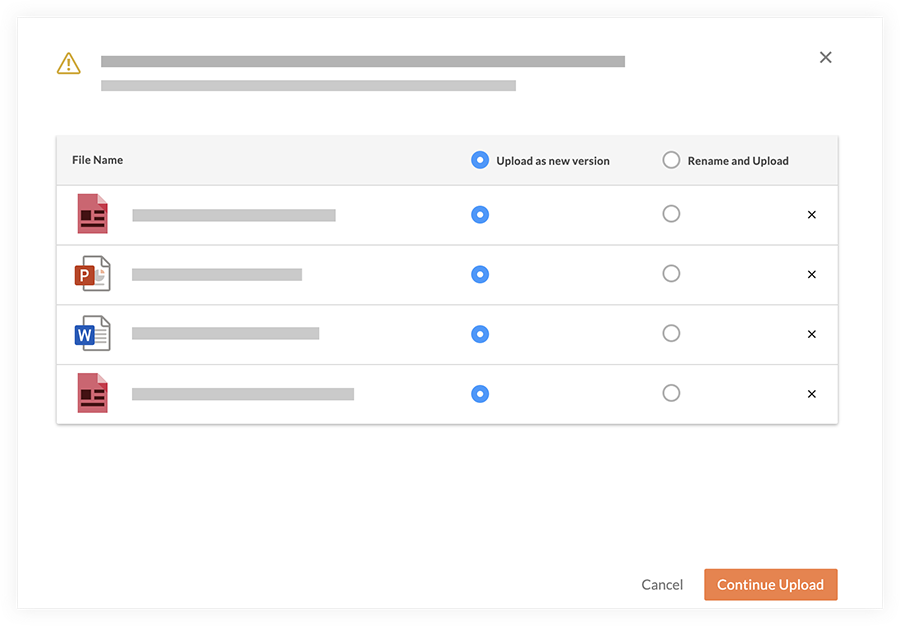
- Click Continue Upload.