Send a PCCO to ERP Integrations for Accounting Acceptance
Objective
To send a Prime Contract Change Order (PCCO) to the ERP Integrations tool for acceptance for export to an integrated ERP system by an accounting approver.
Background
If you have a PCCO in Procore that does NOT exist in your ERP, you can send that data to your ERP. First, send the PCCO to your company's ERP Integrations tool. After the data is successfully sent to the ERP Integrations tool, it can then be accepted or rejected for export to your ERP by your company's accounting approver.
Things to Consider
- Required User Permission:
- 'Admin' permission on the project's Prime Contracts Tool.
- Additional Information:
- The Prime Contract Change Orders tab of the ERP Integrations tool must be enabled.
- The Prime Contract Change Order (PCCO) you want to export must be in an 'Approved' status.
- Vertical and Horizontal Markups are supported.
- Not all ERP integrations support syncing PCCOs. Additional considerations, limitations, or requirements may apply depending on the ERP system your account is integrated with. See Things to Know about your ERP Integration for details.
Steps
- Navigate to the project's Prime Contracts tool.
- Click the Change Orders tab.
- Locate the PCCO that you want to export the Prime Contract Change Orders list.
- Choose from these options:
- If the PCCO is in the Approved status, click View.
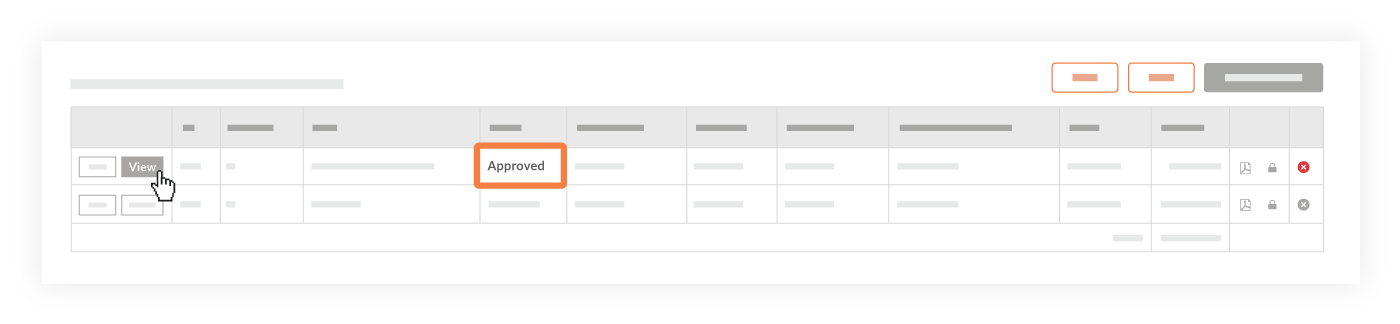
OR - If the PCCO is in any other status, click Edit. Then change the status to Approved and click Save at the bottom on the page.
Note: You must have 'Admin' permission on the Prime Contracts tool or be a 'Designated Approver' on the PCCO to change the status of a PCCO to Approved.
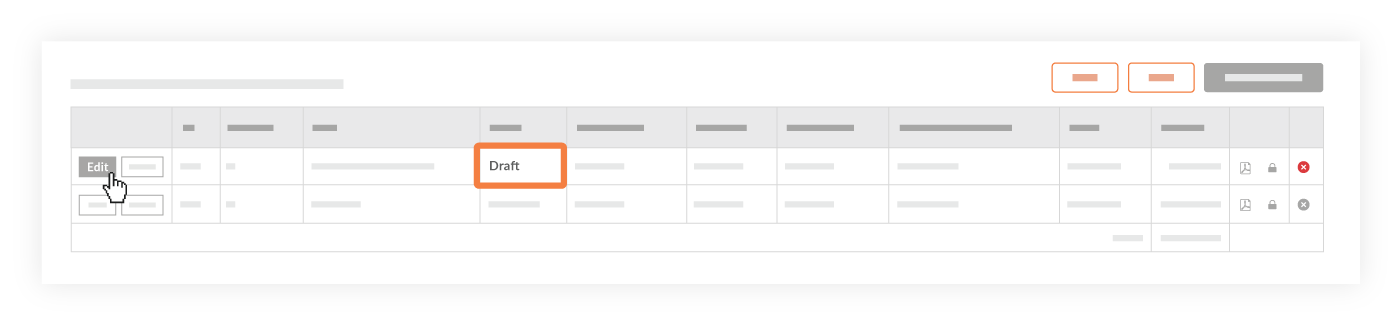
- If the PCCO is in the Approved status, click View.
- If the PCCO is in the 'Approved' status, click Send to ERP.
Note: If this button is grayed out and unavailable, check to see if the PCCO is in the 'Approved' status. Hover your mouse cursor over the tooltip for more information.

The system sends the PCCO to the Company level ERP Integrations tool and the icon at the top of the page changes to BLUE. See What do the ERP icons mean?
Tip
If you send a PCCO to the ERP Integrations tool and discover you need to make changes to it, follow the steps below before an accounting approver accepts the PCCO for export to your ERP.