View Budget Reports
Objective
To view and work with the budget reports in the project's Budget tool.
Background
You can gain access to a number of reports from the project's Budgets tool. Although reports can be accessed from the project's Budget tool, they are generated with the project's Reports tool.
Things to Consider
- Required User Permissions:
- To view the Budget Modifications, Legacy Budget Detail, and Monitored Resources reports:
- 'Read Only' level permissions or higher on the project's Budget tool
- 'Read Only' level permissions or higher on the Project level Reports tool.
- To view the Buyout Summary report:
- 'Read Only' level permissions or higher on the project's Budget too
- 'Read Only' level permissions or higher on the Project level Reports tool
- 'Read Only' level permissions or higher on the project's Commitments tool.
- To view the Budget Modifications, Legacy Budget Detail, and Monitored Resources reports:
Prerequisites
- Set up a Budget in a New Procore Project
- Add the Reports tool to the project. See Add and Remove Project Tools.
Steps
- Navigate to the project's Reports tool.
- Under Financial Reports, click one of these links to learn about each report:
Budget Modifications Report
The Budget Modifications Report provides a comprehensive list of all budget modifications that have been performed on the budget. It's important to remember that budget modifications can only be added to a locked budget. Since users with 'Standard' and 'Admin' user permissions on that Budget tool can perform budget modifications, you can use this report to quickly identify who made a particular modification, as well as when it was added to the budget.

Buyout Summary Report
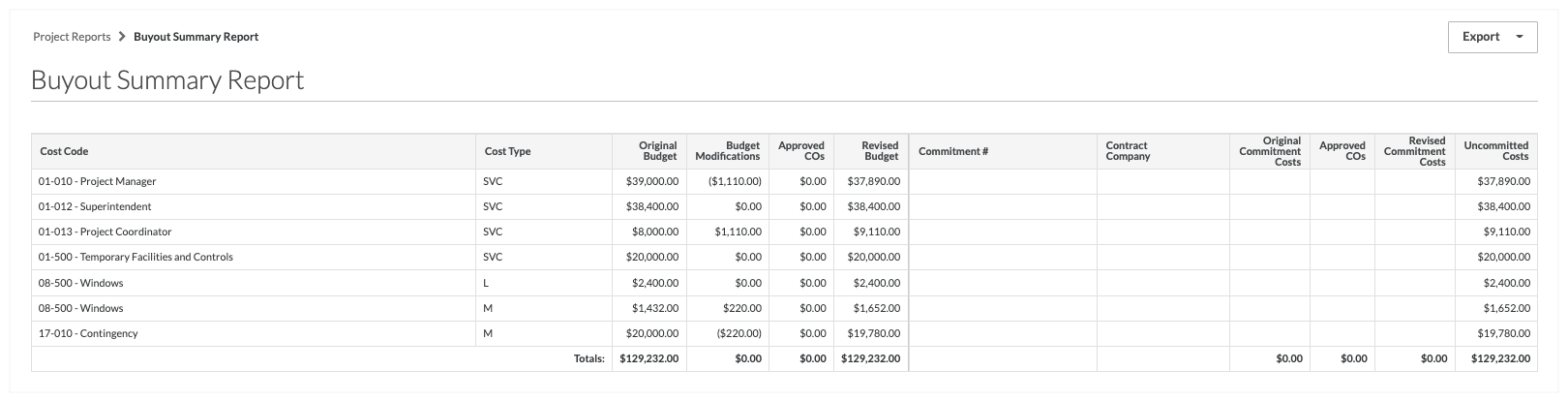
The report will display every line on the Budget, and will only display approved Commitment contracts for those line items. This report can be used to quickly determine which vendors are working on each Budget line item and identify any Budget line items where the Commitment contracts have not been written or finalized.
Tip
Want to apply a similar view in your project's Budgets tool? Your company's Procore Administrator can set up a Procore budget view to include the same columns as the 'Buyout Summary Report'. For instructions, see Set up a New Budget View
Legacy Budget Detail Report
Important
The Legacy Budget Detail Report is being phased out for the new and improved version. To learn more about the Budget Detail tab in the Project level Budget tool, please visit About the Budget Detail Tab.The Legacy Budget Detail Report provides the most detailed report of your budget. It shows a comprehensive breakdown of all types of changes to the budget including:
- Contract Change Orders
- Commitments
- Budget Modifications
Note
The columns in this report are fixed. The columns cannot be modified to match specific budget views that are assigned to your Procore project.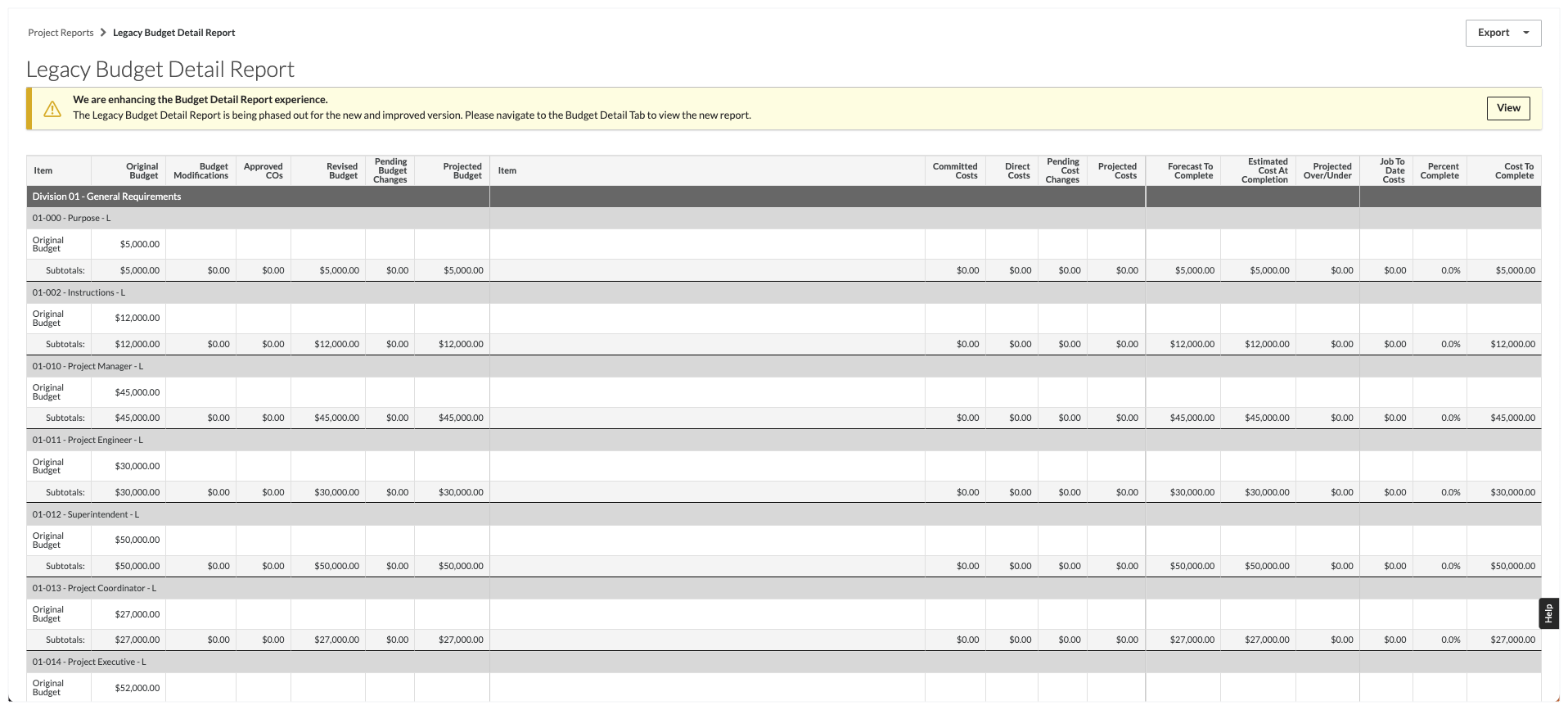
Monitored Resources Report
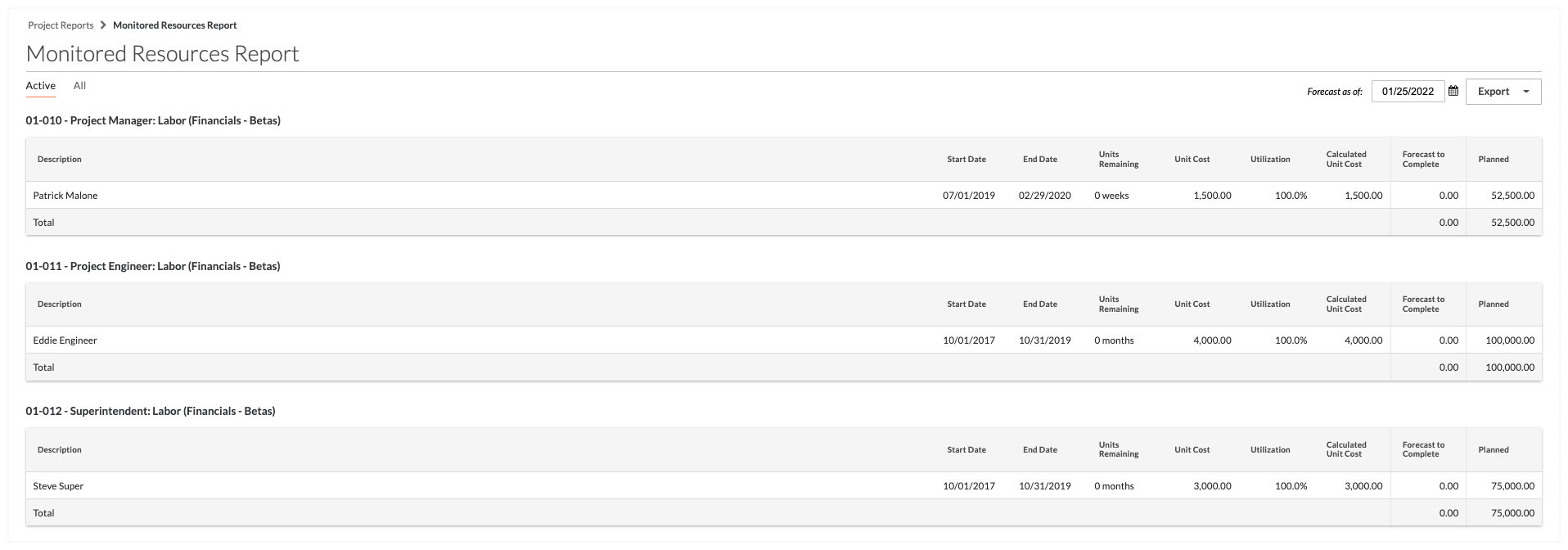
The Monitored Resources Report provides users with the ability to generate reports using data entered for monitored resources. It works with the Forecast to Complete feature to provide a summarized list of a project’s monitored resources. The report is organized by budget line item. By default, this report includes the data available on the Budget tool's ‘Active’ tab, so your report will display only those monitored resources which are actively being used to forecast your budget line items.
If you want to include monitored resources that have been entered by users with the Forecast to Complete feature but are not currently being used to forecast the project's budget line items, click the ‘All’ tab. By default, the value in the 'Forecast to Complete’ column is the forecasted cost to complete as of the current date. You can adjust the value in the ‘Forecast to Complete’ column by using the ‘Forecast As Of' date selection to forecast your monitored resources using a different start date.
 .
.