Delete a Subcontractor Invoice from the Commitments Tool (Legacy)
Legacy Content
This content details the Commitment tool's legacy experience. To learn how to use the modernized experience, see Delete a Subcontractor Invoice.
Objective
To delete a subcontractor invoice from a purchase order or subcontract using the project's Commitments tool.
Background
You can use the steps below to delete a subcontractor invoice from a purchase order or subcontract. Once deleted, the data is permanently removed from Procore and cannot be retrieved.
Things to Consider
- Required User Permissions:
- 'Admin' level permissions on the project's Commitments tool.
OR - 'Standard' level permissions on the project's Commitments tool and the invoice must be set to the 'Draft' or 'Revise and Resubmit' status. See What are the default statuses for Procore invoices?
-
Note
For user with the required user permissions listed above, you can alternatively delete an invoice from the project's Invoicing tool. For instructions, see Delete an Invoice from the Invoicing Tool.
- 'Admin' level permissions on the project's Commitments tool.
- Additional Information:
- You can only delete the most recent invoice on a commitment.
- Delete actions are recorded in the Change History tab on the commitment.
- Limitations:
- Once deleted, the data is permanently removed from Procore and cannot be retrieved.
-
For companies using the
 ERP Integrations tool:
- Before you can delete a subcontractor invoice that has been synced with an integrated ERP system, you will first need to unlink the synced invoice.
Prerequisites
- You or another user must create an invoice to delete:
Steps
Choose the following options for deleting a subcontractor invoice:
- Delete an Invoice from the Invoices Tab
- Delete an Invoice from the Contract's 'Invoice (Requisition)' Page
Delete an Invoice from the Invoices Tab
- Navigate to the project's Commitments tool.
- Click the Contracts tab.
- Locate the contract that contains the invoice you want to delete. Then click its Number link.
This action opens the contract. - In the contract, click the Invoices tab.
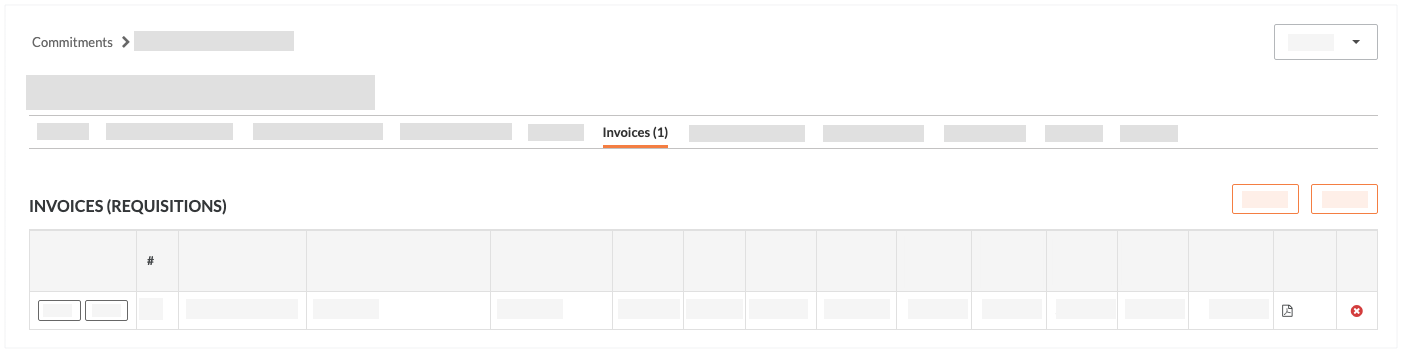
- Locate the invoice to delete in the 'Invoices (Requisitions)' section. You can only delete the most recent invoice on a commitment. Then click the RED (x) icon.
Delete an Invoice from the Contract's 'Invoice (Requisition)' Page
- Navigate to the project's Commitments tool.
- Click the Contracts tab.
- Locate the contract that contains the invoice you want to delete. You can only delete the most recent invoice on a commitment. Then click its Number link.
This action opens the contract. - Click the Invoices tab.
- In the 'Invoices (Requisitions)' table, locate the invoice to delete. Then click View or Edit.
This action opens the contract associated with the selected invoice in the project's Commitments tool. The Summary tab is visible by default.
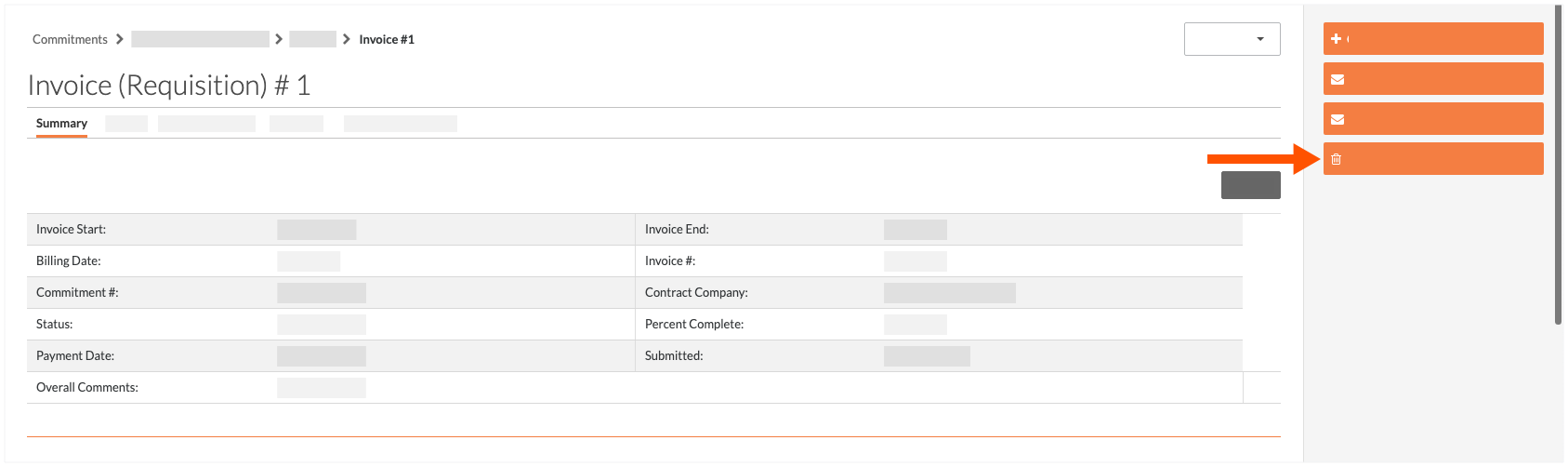
- Click the Delete button.
If you would like to learn more about Procore's invoice management software and how it can help your business, please visit our construction invoice management software product page  .
.
.