Export a Commitment
Objective
To export an individual purchase order or subcontract using the Export menu in the project's Commitments tool.
Background
You can export an individual purchase order or subcontract to the supported file formats detailed below. This is useful when you want to print out a paper copy of a purchase order or subcontract when you want to obtain a wet signature.
Things to Consider
- Required User Permissions:
- To export any purchase order or subcontract with its Schedule of Values:
- 'Admin' level permissions or higher on the project's Commitments tool.
OR - 'Read Only' level permissions on the project's Commitments tool and you must be added to the 'Privacy' drop-down list and the 'Allow Users to see SOV Items' check box must be enabled on the purchase order or subcontract.
- 'Admin' level permissions or higher on the project's Commitments tool.
- To export any purchase order or subcontract with its Schedule of Values:
- Supported File Formats:
- Comma Separated Values (CSV)
- Microsoft Word Open XML Document (DOCX)
- Due to file conversion rules, formatting may shift slightly when the DOCX file is opened in other applications.
- Portable Document File (PDF)
- Additional Information:
- To export a commitments list, see Export Commitments.
PROCORE SUPPORT: INTERNAL NOTES
It is important to note that users with 'Read Only' level permissions or higher are NOT permitted to use the export function. A YELLOW forbidden error appears if user attempts to export without the 'Allow Users to See SOV Items" check box. To learn why, see CCMT-352 in JIRA.
Prerequisites
Steps
- Navigate to the project's Commitments tool.
- Click the Contracts tab.
- Locate the commitment to export in the table.
- Click its Number link to open it.
- After you open the commitment, the steps that are available depend on the experience you are using.
In Beta
The steps below detail the steps to follow when using the Modernized Commitments experience. To learn more, see Project Financials: Modernized Experience for the Commitments Tool.
From the General Tab
- In the commitment, click the General tab.
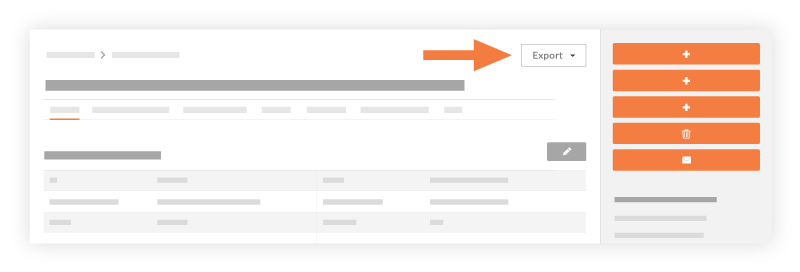
- In the top-right corner, click the Export button. Then choose one (1) of these options:
- PDF. Generates a PDF copy of the commitment and opens it in a separate browser window. You can then save the PDF to your web browser's Download location or send the document to a printer. The PDF displays the budget code. See What is a budget code in Procore's WBS?
- DOCX. Downloads a DOCX copy of the commitment to your web browser's specified download location.
Legacy Content
The steps below details the steps to follow when using the legacy Commitments experience. To learn more, see Project Financials: Modernized Experience for the Commitments Tool.
From the General Tab
- In the commitment, click the General tab.
Note: These steps also work as described from these tabs: Subcontractor SOV, Invoices, Payments Issued, Related Items, Emails, Change History, and Advanced Settings. - In the top-right corner, choose one (1) of these options:
- Export > PDF. Generates a PDF copy of the commitment and opens it in a separate browser window. You can then save the PDF to your web browser's Download location or send the document to a printer. The PDF displays the budget code. See What is a budget code in Procore's WBS?
- Export > DOCX. Downloads a DOCX copy of the commitment to your web browser's specified download location.
Additional Export Options
Some tabs provide additional export options.
| Tab Name | Additional Option | Description |
|---|---|---|
| Schedule of Values | Export Contract Line Items (Export > CSV) | Downloads a CSV copy of the line items on the commitment's Schedule of Values. |
| Change Orders | Export Change Order Log (Export > PDF) |
Generates a PDF copy of the commitment and opens it in a separate browser window. You can then save the PDF to your web browser's Download location or send the document to a printer. This PDF displays the budget code |
| RFQs | Export RFQ Log (Export > PDF) | Generates a PDF copy of the commitment and opens it in a separate browser window. You can then save the PDF to your web browser's Download location or send the document to a printer. This PDF displays the budget code. |
See Also
 .
.