Create a Subcontractor Schedule of Values (SSOV)
For Procore Customers in the United States
 When your company applies the 'Owners English' or 'Specialty Contractors English' point-of-view dictionary, you'll see different tool names and term changes in the user interface. Learn how to apply the dictionary options.
- To learn the differences: Show/Hide
Objective
To create a Subcontractor Schedule of Values (SSOV) on a commitment.
Background
In the same way that you can invite an invoice contact to submit a subcontractor invoice for review, you can also invite an invoice contact to provide a more detailed breakdown of line items on the 'Schedule of Values' tab by enabling the 'Subcontractor SOV' tab on a commitment.
- On the general 'Schedule of Values' tab for a commitment, each line item is assigned to a specific cost code and cost type.
- On the 'Subcontractor SOV' tab on a commitment, you may be asked to provide a more detailed breakdown of a line item on the 'Schedule of Values' tab. This may be required to provide a more full explanation about the amounts to obtain approval on an invoice.
Things to Consider
- You must be an invoice administrator.
- You must have 'Standard' level permissions on the Project level Commitments tool.
AND - You must be added to the 'Private' drop-down list on the commitment.
- Read about required user permissions for downstream collaborators: Show/Hide
- Some Procore customers choose to provide their downstream collaborators with access to the Project level Commitments tool:
- To modify retainage amounts on the most recent invoice before the billing period's 'Due Date':
- You must be an invoice contact on the commitment.
AND - You must have 'Read Only' level permissions on the Project level Commitments tool.
- You must be an invoice contact on the commitment.
- To modify retainage amounts on the most recent invoice before the billing period's 'Due Date':
- Some Procore customers choose to provide their downstream collaborators with access to the Project level Commitments tool:
- Limitations:
- If a commitment is using the Unit/Quantity Based accounting method, adding the Subcontractor SOV is not supported. See How do I set the accounting method for a contract or funding?
- Additional Information:
- On the purchase order's or subcontract's General tab, you must select your collaborator's user name in the 'Private' and 'Invoice Contact' fields before your collaborator can see the SOV.
- Only the detail line items added on the Subcontractor SOV tab will carry over to the invoice.
- For companies using the ERP Integrations tool, the Subcontractor SOV line items that you create do NOT sync with your integrated ERP system.
- On the purchase order's or subcontract's General tab, you must select your collaborator's user name in the 'Private' and 'Invoice Contact' fields before your collaborator can see the SOV.
Tip
Are you creating a Subcontractor SOV for your downstream collaborator to update later? If so, your company must provide the collaborator with a Procore user account in your Company Directory. In addition, that user must be granted the appropriate permissions for an invoice contact. To learn more, see What is an invoice contact?Prerequisites
- Create a commitment. See Create a Commitment.
- Ensure the commitment is set to use the Amount Based accounting method. See How do I set the accounting method for a contract or funding?
- Enable the Subcontractor SOV Tab. See Enable or Disable the Subcontractor SOV Tab on the Commitments Tool.
- The user performing these steps must have invoice contact permissions. See Add Invoice Contacts to a Purchase Order or Subcontract.
Steps
Create a Commitment
Complete the steps in Create a Commitment.
Update the Schedule of Values
- Navigate to the project's Invoicing tool.
- Click the Subcontractor tab.
- Locate the commitment in the list and click the Contract link to open it.
- In the General tab, click Edit.
- Click the Schedule of Values tab.
- Click Add Line.
Notes
- The 'Schedule of Values' tab is a general SOV that details each scope of work associated with the commitment.
- The 'Subcontractor SOV' tab is the more specific area where collaborators are invited to provide a detailed line-item breakdown for each line item on the commitment's general 'Schedule of Values' tab.
- Add all related line items to the general 'Schedule of Values' tab:
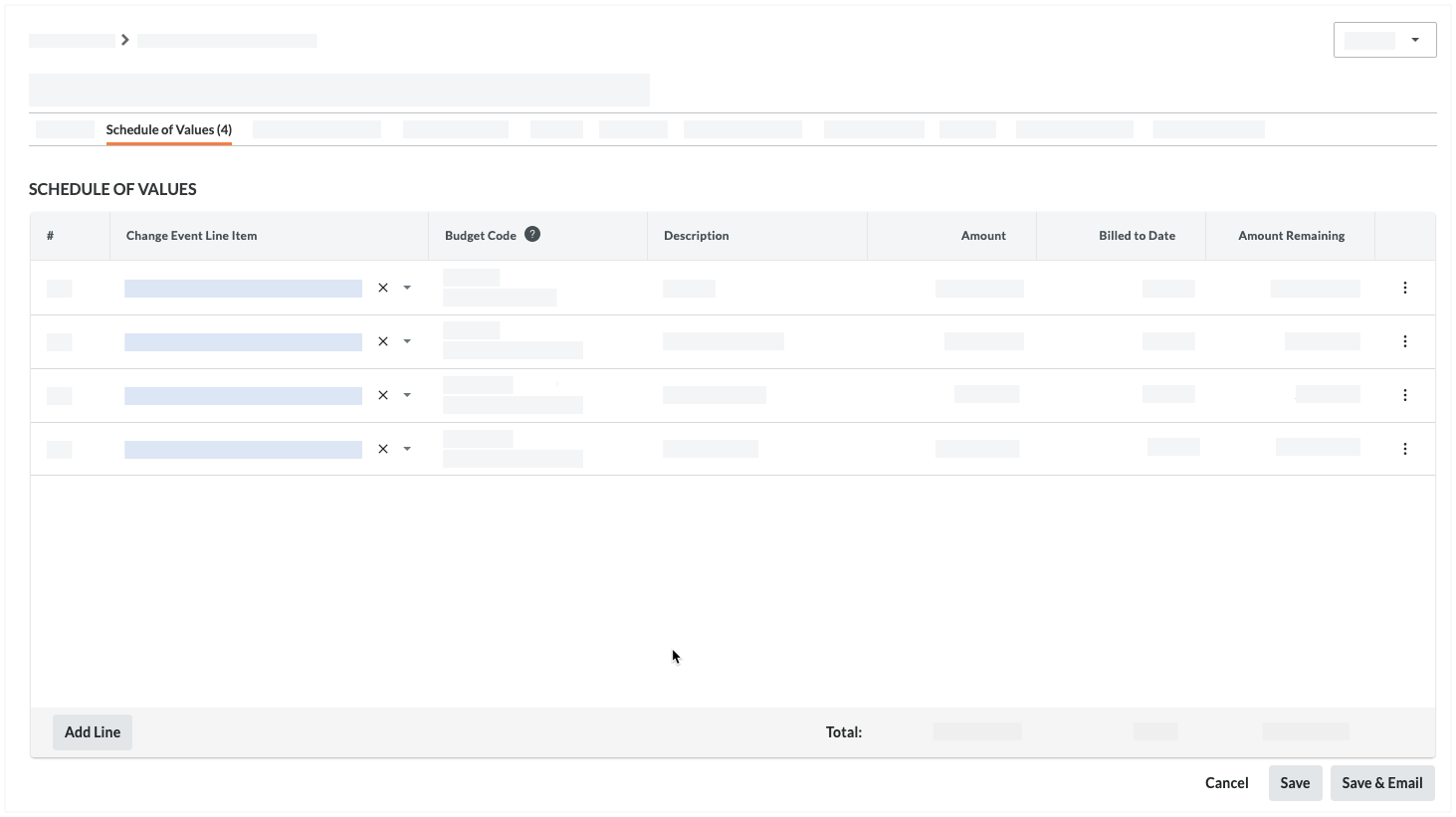
- Change Event Line Item
If you have change events enabled, you can select a change event line item if you want to link the commitment to a specific change event. - Prime Contract Line Item
If you do not have change events enabled, select the related line item from your prime contract. If the item is not accounted for in the prime contract, select the 'Non Budgeted' option. - Budget Code
Select a budget code from the list or click Create Budget Code to create a new one. See What is a budget code in Procore's WBS? - Description
Enter a brief description of the line item. - Tax Code
Select a tax code to use for this line item. This field only appears if you have enabled the tax codes feature. See How can I use tax codes on a project? - Amount
Specify the cost of the line item.
- Change Event Line Item
- Click Add Line Item to add additional line items, as necessary.
- Once you are done adding line items, do one of the following:
Note
If you have already saved the invoice, the Create button is labeled Save and the Create & Email button is labeled Save & Email.- To add subcontractor SOV line items on behalf of your subcontractor, click Create or Save.
OR - To invite your invoice contacts to create the Subcontractor SOV line items, click Create & Email or Save & Email.
Tip
When does Procore send email notifications to invoice administrators, invoice contacts, and members of an invoice's distribution list? To learn more, see When does Procore send email notifications to invoice contacts?
- To add subcontractor SOV line items on behalf of your subcontractor, click Create or Save.
- Continue with the next step.
Update the Subcontractor Schedule of Values
If you are an invoice administrator (or an invoice contact who has been invited to update a Subcontractor SOV), you can perform these steps on the commitment.
- Click the Subcontractor SOV tab.
Note
If you do NOT see a 'Subcontractor SOV' tab on the commitment contract, a user with 'Admin' level permissions on the Commitments tool must enable it. See Add a Subcontractor SOV to a Commitment and Enable or Disable the Subcontractor SOV Tab on the Commitments Tool. - Click Edit.
- Enter a detailed line-item breakdown in the Subcontractor SOV tab as follows:
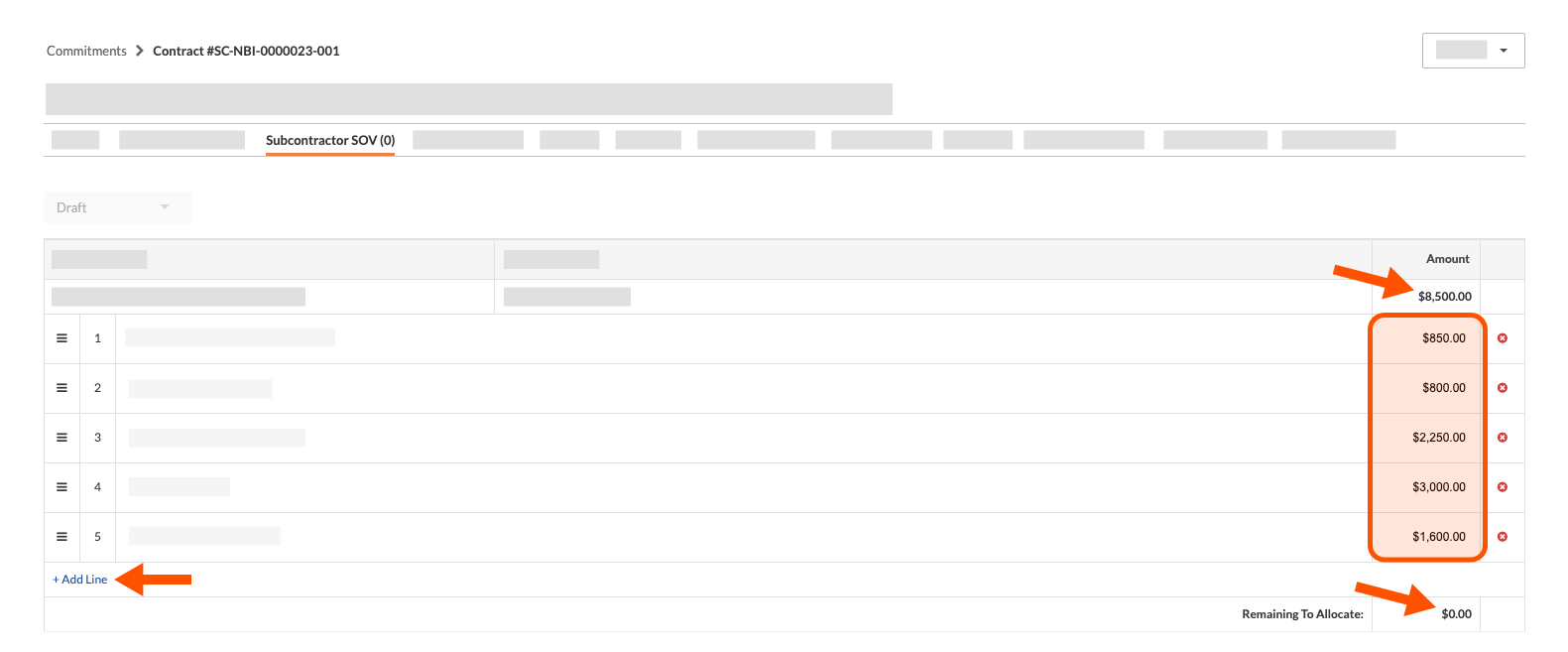
- Click the +Add Line Item link.
- In the Description box add a detailed description of the work to complete.
- In the Amount box, add the specific amount for that work.
- Continue this step until the 'Remaining to Allocate' amount for that budget code and description reads $0.00.
- When you have allocated all of the amounts in the Subcontractor SOV tab, click the Submit button.
Notes
- The Submit button is dimmed and unavailable until the Remaining to Allocate fields in the Subcontractor SOV all read $0.00.
- After you click the button, Procore changes the status of the Subcontractor SOV to Under Review.
- You will NOT be able to edit your submission unless the invoice administrator changes the status of the Subcontractor SOV to Revise & Resubmit.
 .
.