(Beta) Create Prime Contract Change Orders
Objective
To create a Prime Contract Change Order from a change event.
Background
If the Change Events tool is enabled on your project, your project's change order tier configuration setting. The tier setting determines the number of steps that take place before creating a prime contract change order. To learn more, see What are the different change order tier settings in Project Financials?)
| Change Order Tier Setting | For three (3) tier, start here... | For two (2) tier, start here... | For one (1) tier, start here... |
|---|---|---|---|
| One (1) Tier | N/A | N/A | See below |
| Two (2) Tier | N/A | Create a Potential Change Order for a Prime Contract from a Change Event | See below |
| Three (3) Tier | Create a Potential Change Order for a Prime Contract from a Change Event | Create a Change Order Request | See below |
Tips
Are you inviting contractors to submit tenders on your project's change events using the RFQs feature? Learn more about the RFQs feature by visiting one of these links:
- Can I create a change order for a contract or funding before a downstream collaborator responds to an RFQ for a change event?
- What are the different RFQ statuses and how do they affect cost and change order amounts?
Are you using Procore's 'Revenue ROM' function?
If your project team has opted to use the Revenue ROM function, the SOV on your prime contract change orders is also automatically updated. If you have hidden the Revenue ROM function, any automatic updates depend upon the scope of the change event:
- When change events are 'In Scope' or 'TBD', the SOV on the prime contract change order is automatically updated with a $0 value.
- When change events are 'Out of Scope', the SOV on the prime contract change order is automatically updated using the data from the RFQ when the RFQ status is set to 'Pending Final Approval.'
- When change events are not in one of the above statuses, the SOV is automatically updated using the Cost ROM.
Things to Consider
SUPERUSER ONLY
It is important to be aware of the 'Allow Standard Level Users to Create PCCOs' check box in the 'Configure Settings' page of the Prime Contracts tool. This checkbox is enabled by a Superuser setting in the 'General Settings' page of the Company Admin tool named 'Enable Config to Allow Standards to Create CORs, PCCOs, and CCOs'.
Because this setting provides users with 'Standard' level permissions the capability to approve their own changes orders (for example, when the workflow is enabled) in both Prime Contracts and the Commitments tool, it is an uncommon setting for Procore customers to implement. By default, this Superuser setting is turned OFF on all new Procore company accounts.
- Required User Permissions:
- 'Standard' or 'Admin' level permissions on the project's Change Events tool.
AND - 'Standard' or 'Admin' level permissions on the project's Prime Contracts tool.
Notes
For users with 'Standard' level permissions on the project's Prime Contracts tool to perform this task, the following must also be true:- The user must be added to the 'Private' drop-down list of the prime contract. See Create Prime Contracts.
- If the project is configured to use the two (2) or three (3) tier change order setting (see What are the different change order tier settings in Project Financials?), the 'Allow Standard Users to Create PCO's' checkbox setting must be enabled. See Configure Settings: Prime Contract.
- 'Standard' or 'Admin' level permissions on the project's Change Events tool.
- Required Configuration Setting:
- To complete the steps below, you must enable the 1-tier configuration setting for Prime Contract Change Orders. See Configure the Number of Prime Contract Change Order Tiers.
- Additional Information:
- After you create a change event, you can also create an RFQ to send to the affected subcontractor(s). See Create RFQs.'
- If your company has enabled the ERP Integrations tool, keep these items in mind:
- QuickBooks® Desktop:
- Prime contract change order exports are NOT supported.
- Sage 100 Contractor®:
- Prime contract change order exports are NOT supported.
- Sage 300 CRE®:
- Title. The prime contract change order title must be 30 characters or less.
- Number (#). The prime contract change order number be five (5) characters or less.
- Status. The prime contract must be in the Approved status.
- Associated Line Item. For each line item that you add to the change order's Schedule of Values (SOV), you may designate one (1) associated line item for each change order line item or the same associated line item for all change order line items. Note: The Associated Line Item list is only visible and available when the ERP Integrations tool has been configured to work with Sage 300 CRE® and the export prime contract change orders capability has been switched on in Procore by your Integration Implementation Specialist.
- Integration by Procore:
- Prime contract change order exports are NOT supported.
- Vista:
- Prime contract change order exports are supported.
- CMiC:
- Date. Required field.
- Status. The prime contract must be in the Approved status.
- Associated Line Item. For each line item that you add to the change order's Schedule of Values (SOV), you may designate one (1) associated line item for each change order line item or the same associated line item for all change order line items. Note: The Associated Line Item list is only visible and available when the ERP Integrations tool has been configured to work with CMiC and the export prime contract change orders capability has been switched on in Procore by your Integration Implementation Specialist.
- Markups. Horizontal Markups are allowed. Vertical Markups are not allowed at this time.
- QuickBooks® Desktop:
Prerequisites
- The Change Events tool must be enabled on the project. See Add and Remove Tools on a Project.
- Your project's Prime Contract must be in the 'Approved' status. See Approve a Prime Contract.
Steps
- Navigate to the project's Prime Contracts tool.
- Locate the prime contract to modify. Then click its Number link.
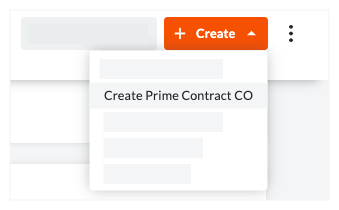
- Click the Create button and choose one of these options:
- If your project uses the one (1) tier change order tier setting, choose the Create Prime Contract CO option.
OF - If your project uses the two (2) or three (3) tier change order tier setting, choose the Create Prime PCO option. You must create a potential change order before you can create a prime contract change order (i.e., for 2-tier change orders) or change order request (i.e., for 3-tier change orders).
Example
The illustration below shows you the location of the 'Create' button. The options in the drop-down list will vary, depending on your project's change order tier setting.
- If your project uses the one (1) tier change order tier setting, choose the Create Prime Contract CO option.
- In the 'General Information' section, complete the following
- Depending on the change order tier settings of the Prime Contract's tool, one (1) of these list boxes will appear: OR
- Choose one (1) of these options:
- To create the change order, click Create.
OR - To create the change order and send email notifications, click Create & Email.
OR - If you are using the Procore + DocuSign® integration to collect signatures, click Complete with DocuSign. To learn more, see DocuSign®.
- To create the change order, click Create.
 .
.