Edit a Custom RFI Report
Objective
To edit a custom RFI report's type, name, preferences, columns, and/or filtering.
Things to Consider
- Required User Permissions:
- 'Admin' level permissions to the RFIs tool to edit all reports that are not marked 'personal' to another user.
- 'Standard' level permissions on the RFIs tool to edit the reports created by that user.
- 'Read Only' level permissions to the RFIs tool to view RFIs.
- Additional Information:
- The data displayed in the custom portfolio reports is dynamically generated and always reflects current project data.
- Custom RFI reports are only viewable under the RFIs tool; they are not shown under the Reports tool.
Demo
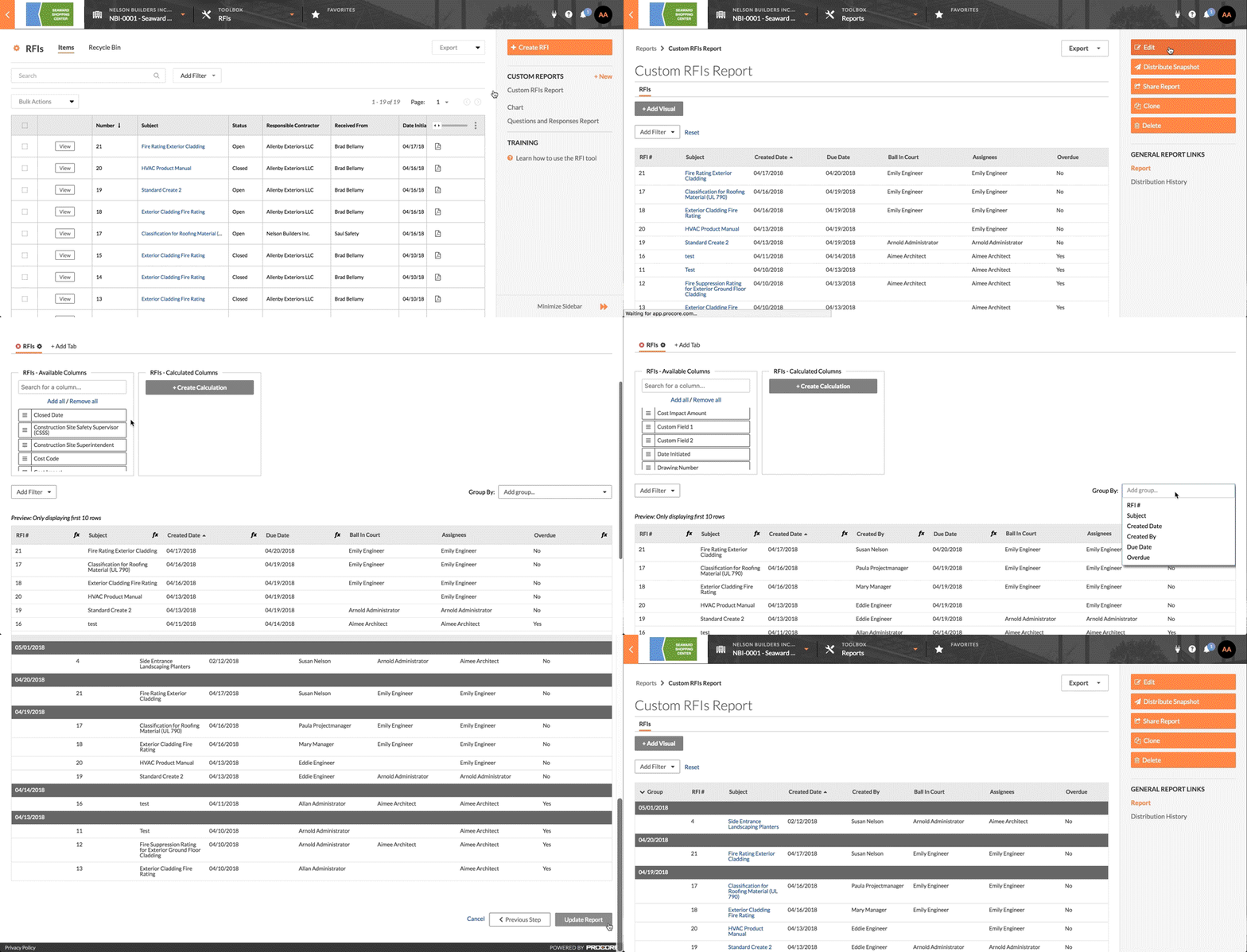
Steps
- Navigate to the project's RFIs tool.
This reveals the RFIs page. - Under Custom Reports in the right pane, click the desired custom report.
This launches the Reports tool. - Click Edit.
This places the report in edit mode - Edit the report content as desired.
Notes:- You can edit the type, name, sort by preferences, columns and/or filtering according to your needs.
- When you edit the RFI report type, those changes will automatically be reflected. For example, if you previously marked a report as personal and unchecked that option, the report will now be visible to everyone in the project (if it is a project-specific report), or everyone in each of the company's projects (if it is a 'global' report).
- For more information, see Create and View a Custom RFI Report.
- Click Update Report.
This saves your edits to the custom report.
If you would like to learn more about Procore's RFI software and how it can help your business, please visit our request for information (RFI) construction software product page  .
.
.