Move a Document to Another Folder in Portfolio Financials
Note
The information in this tutorial applies to accounts with the Portfolio Financials product in Procore. Reach out to your Procore point of contact for more information.Objective
To move documents to another folder of the Documents section in Portfolio Financials.
Background
The Documents section of the Project Page in Portfolio Financials is where important documents related to the project can be stored and accessed. After documents have been uploaded, they can be moved and organized into folders.
Things to Consider
- Required User Permissions:
- 'Limited' access to the project or higher.
- Additional Info:
- Only one file can be moved into a folder at a time.
Prerequisites
- The folder you want to move a file to must already exist in the Documents section for the project. See Create a New Folder for Documents on the Project Page.
Steps
- Navigate to the relevant project and scroll to the Documents section.
- Click the vertical ellipsis
 icon and select Move To.
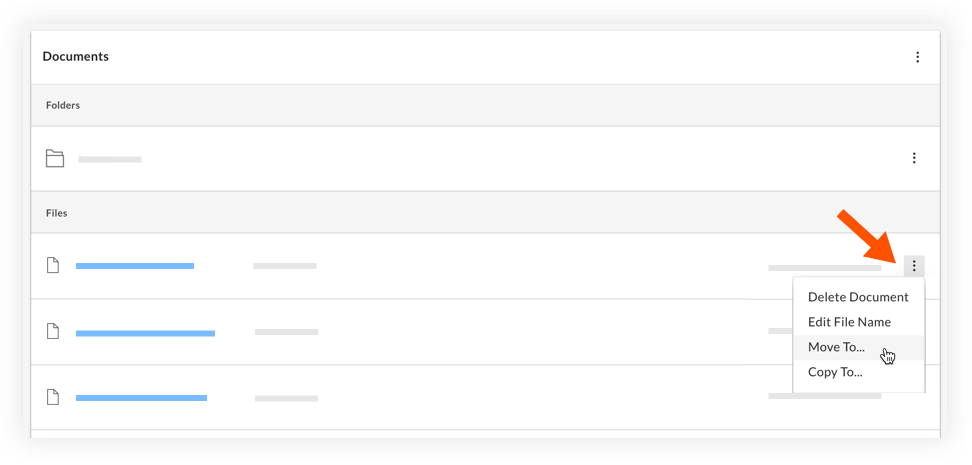
- Select the folder you want to move the file to.
- Click Save.