Search for and Filter Employee Timesheets
Objective
To use the Company level Timesheets tool's search and filter settings to find a timesheet.
Background
After you create timesheets, you can apply search and filter options to organize your information on the page.
Things to Consider
Prerequisites
Steps
Search for a Timesheet
- Navigate to the company's Timesheets tool.
- Select one of the available options from the view drop-down list to choose how entries are displayed:
- Day. Select this option to display time entries from a specific day.
- Work Week. Select this option to display time entries from individual work weeks.
- Custom Range. Select this option to display time entries from a custom range of dates.
- Enter the employee's name.
- Click the
 icon or press ENTER on your keyboard to search.
Add Filters
- Navigate to the company's Timesheets tool.
- Select one of the available options from the view drop-down list to choose how entries are displayed:
- Day. Select this option to display time entries from a specific day.
- Work Week. Select this option to display time entries from individual work weeks.
- Custom Range. Select this option to display time entries from a custom range of dates.
- Click the Add Filter drop-down menu.
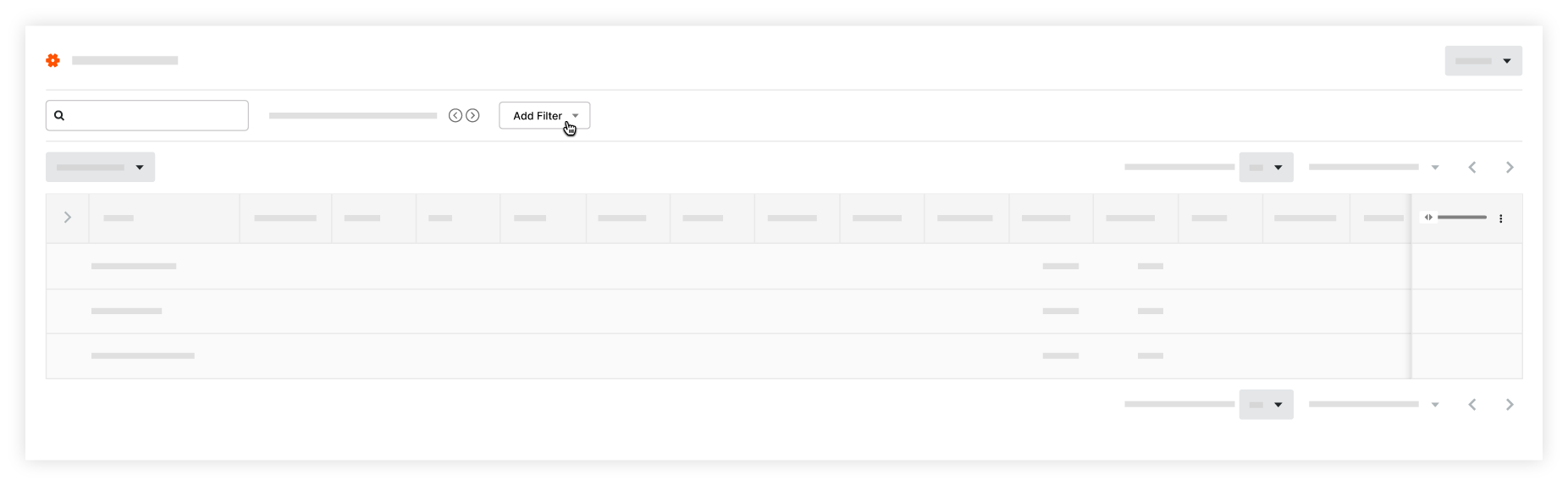
- Select from the following filters:
- Billable.
- Classification. See Add a Classification.
- Cost Code. See Add Company Cost Codes.
- Created By.
- Crews. See Create a Crew.
- Department. See Add a Custom Department.
- Employee ID. These filter options are based on information in your company's Directory.
- Employees.
- Location. See Add Tiered Locations to a Project.
- Office. See Add an Office Location and Assign an Office to a Project.
- Projects.
- Region. See Add a Custom Project Region.
- Status. See Approve a Timesheet.
- Sub Job. See Enable Sub Jobs on Projects for WBS.
- Time Type. See Create a Custom Time Type.
Tip
Surface entries that are missing data by filtering by the 'None' value for specific fields. This feature is available for the following fields:
- Classification
- Cost Code
- Crews
- Employee ID
- Location
- Sub Job
- Time Entered
- Time Type