Forward a Transmittal by Email
Objective
To forward a transmittal by email to members of your project team.
Background
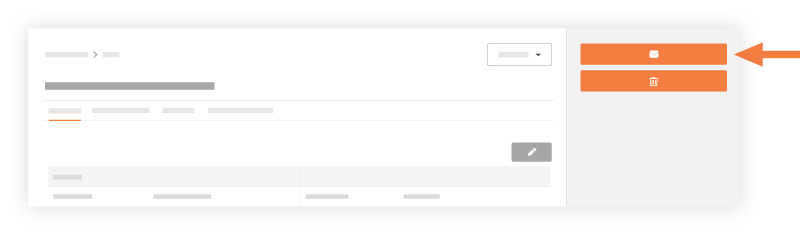
After you create a transmittal, the system reveals a row of tabs across the top of the transmittal. When you open a transmittal in View mode, you'll see an Email button and an Emails tab at the top of the transmittals page. You can click the Email button to open the Forward Transmittal page in the Emails tab. The Steps below describe how to forward a transmittal by email.
Things to Consider
- Required User Permissions:
- To forward a transmittal not marked 'Private':
- 'Standard' level permissions or higher on the project's Transmittals tool.
- To forward a transmittal marked 'Private':
- 'Standard' level permissions or higher on the project's Transmittals tool AND be the transmittal's creator or added to the To or CC field on the transmittal.
OR - 'Standard' level permissions on the project's Transmittals tool with the 'View Private Transmittals Associated to Users within Same Company' granular permission enabled on your permissions template AND a user in your company is the transmittal's creator or was added to the To or CC field on the transmittal.
- 'Standard' level permissions or higher on the project's Transmittals tool AND be the transmittal's creator or added to the To or CC field on the transmittal.
- To forward any transmittal:
- 'Admin' level permissions on the project's Transmittals tool.
- To forward a transmittal not marked 'Private':
Steps
- Navigate to the project's Transmittals tool.
- Locate the transmittal in the list. Then click View.
- Click Email.
- Enter the following in the Emails tab:
- Click Send.
A banner appears to confirm that Procore is sending your message and the system focus returns to the General tab of the transmittal.
If you would like to learn more about Procore's transmittals management software and how it can help your business, please visit our construction transmittal software product page  .
.
.