Add a Tender for a Vendor in Portfolio Financials
Objective
To manually add a vendor's tender to Portfolio Financials to compare with other tenders.
Background
If you have received a tender outside of Procore, you can manually add it to the tender comparison sheet when comparing tenders in Portfolio Financials. While this action does not create a tender or contract for the vendor in Portfolio Financials, it can be helpful in determining your overall consideration of the vendor.
Things to Consider
- Required User Permissions:
- 'Limited' access to the project or higher.
Note: Users with 'Limited' access must be on the Tender Room Team for the project.
- 'Limited' access to the project or higher.
Steps
Important
Adding a tender to the tender comparison sheet does NOT create a contract for the tender. If you want to award a contract to the vendor, you can choose from the following options:
- Have the vendor submit the bid in Portfolio Financials (see Submit a Bid for a Portfolio Financials Project) so that you can convert the bid into a contract. See Select a Bidder to Award a Contract to in Portfolio Financials.
- Create the contract for the vendor manually. See Add a Contract to a Cost Item in Portfolio Financials.
- Navigate to the relevant Tender Room.
- On the Manage Tenders tab, click Compare Tenders.
- Click the Tools menu.
- Click Add Bid.
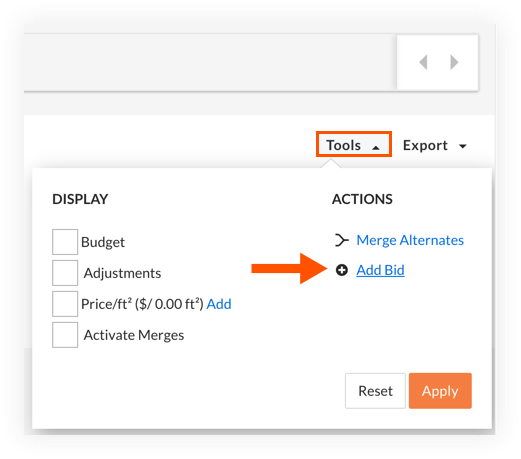
Note: A new bid column is automatically added.
- Enter information for the tender into the new column as necessary.