Compare Tender in Portfolio Financials
Objective
To compare tender in a Tender Room in Portfolio Financials.
Background
With the Tender Comparison feature in Portfolio Financials, you can compare received tender side-by-side and evaluate their data to make informed decisions about your tender. Since all submitted tender in a Tender Room would have used the same tender form, the tender are already levelled on the page.
Things to Consider
- Required User Permissions:
- 'Limited' access to the project or higher.
Note: Users with 'Limited' access must be on the Tender Room Team for the project.
- 'Limited' access to the project or higher.
- Additional Information:
- Important! If your organization has the 'Sealed Bidding' feature enabled by Procore and you are running a sealed bid process, the 'Compare Bids' button will not be available until the bids are unlocked. See How do I run a sealed bid process in Portfolio Financials?
Video
Steps
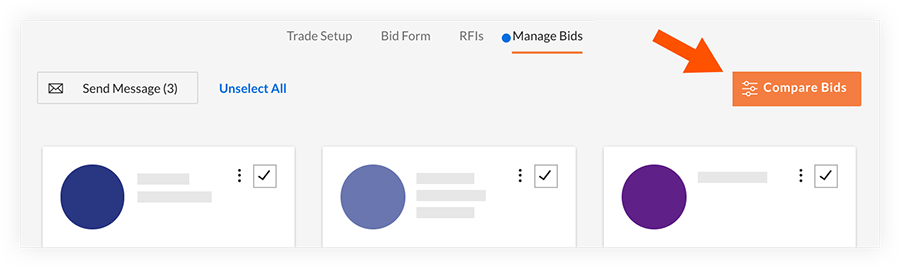
- Navigate to the Tender Room you want to compare tender in.
- Click Manage Tender.
- Click Compare Bids.
Click a link to jump to a section of this article:
Tender Comparison Page Overview
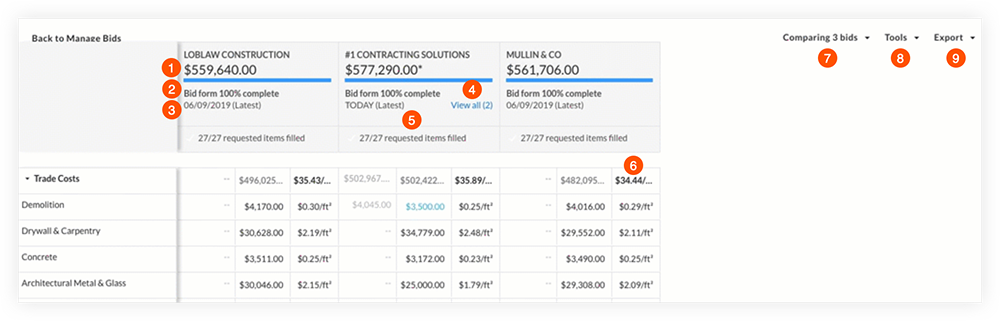
The following options are available in this mode (refer to each number in the image above):
 Total value of tender.
 Tender form completion percentage.
 Date the tender was received.
 Tender revisions (if applicable).
 Number of requested tender form fields completed.
 Price per square footage (Price/ft²) breakdown for a line item.
 Comparing Tender drop-down menu to select and display which tender are visible.
 Tools drop-down menu to select which comparison tools are currently enabled or disabled.
 Export drop-down menu to export the current view.
View Tenderer Comments on Line Items
Bidders have the ability to leave comments on individual line items in their bids to provide additional information or context.
Note: If there is a comment on a line item, there will be a speech bubble icon on a cell.
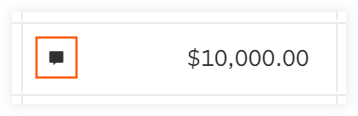
To view comments on a line item:
- Click the speech bubble icon in a cell.
Select Tender to Compare
When you enter the tender comparison page, all of the most recent tender submitted by your vendors appear as columns by default. You can show or hide these columns as needed from the Comparing Tender menu. This tool can also be used to make previously submitted versions of a tender visible so that you can compare the most recent tender to its past iterations if needed.
Note: You can also view one tender individually.
To show or hide tender as columns:
- Click the Comparing Bids drop-down menu.
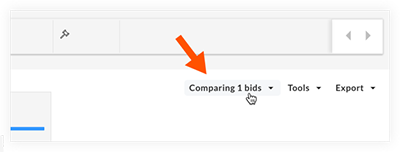
- Choose which tender you want to compare:
- Mark the checkboxes next to tender you want to display as columns.
- Clear the checkboxes for the bids you do not want to display as columns.
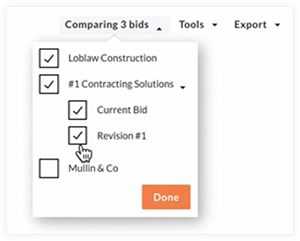
Note: If there are any bid revisions, a down arrow icon is shown to the right of a bid (shown above). Click the down arrow to expand the revisions and mark the checkboxes next to them if you want to display them as columns.
- Click Done.
Select Comparison Tools
The Tools drop-down menu contains a number of tools to help you evaluate your tender.
Enable or Disable a Tool
- Click the Tools drop-down menu.
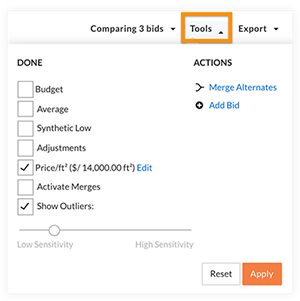
- Mark the checkbox next to a tool to enable it for your comparison.
OR
Clear the checkbox next to a tool to disable it.
See the sections below for details on the following tender comparison tools and actions:
- Adjustments
- Price Per Square Foot (Price/ft²)
- Show Outliers
- Merge or Unmerge Alternates
- Budget (Compare a Tender Against a Budget)
- Average Tender
- Synthetic Low Bid
Adjustments
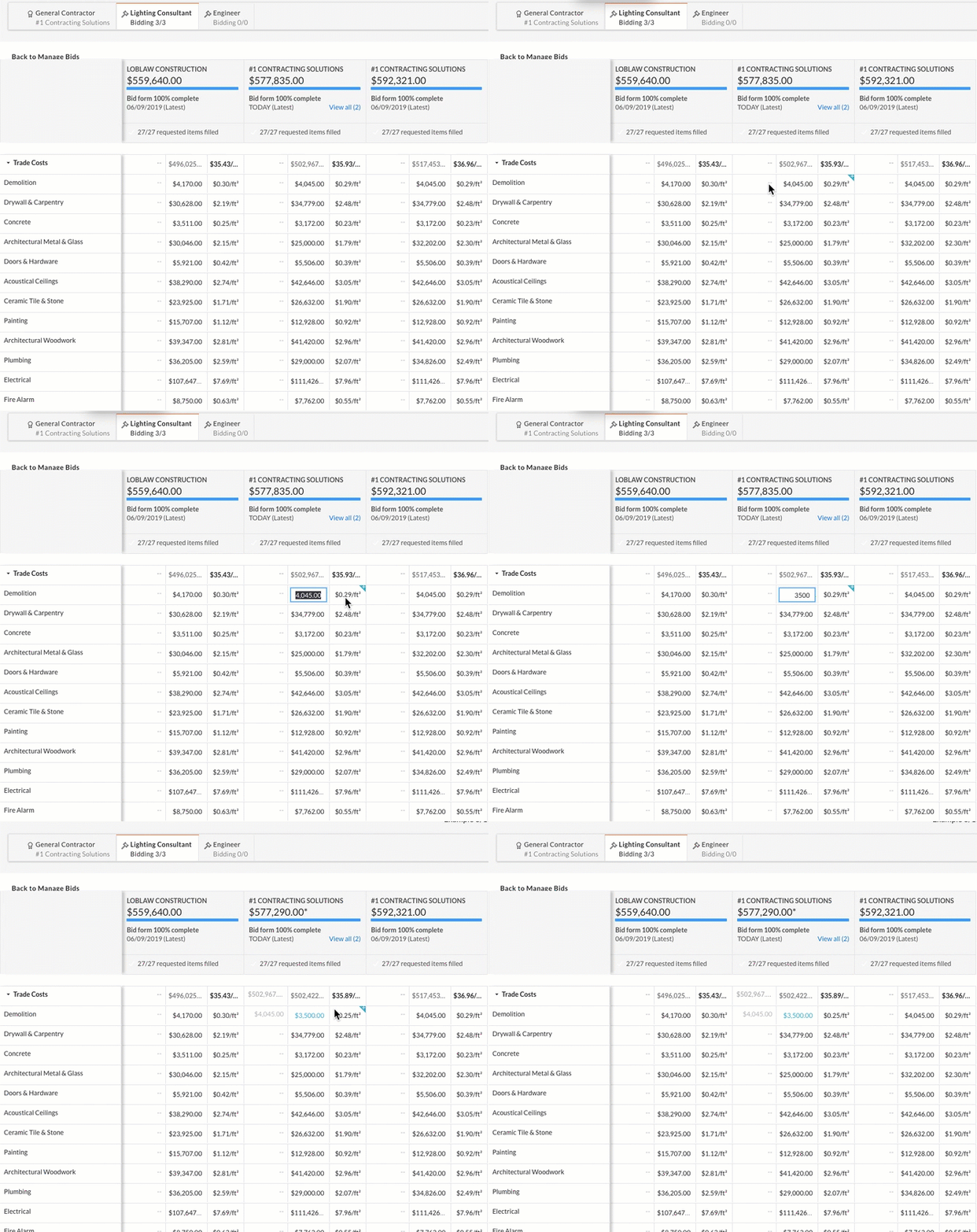
The Adjustments tool is enabled by default and allows you to manually manipulate the value of cells in your tender. For example, this function can be useful if you want to evaluate what a tender might look like with the price of a line item reduced.
Notes:
- Any adjustments you make will modify the total tender value so that you can see how your adjustments affect the overall tender.
- Manipulating the data in the cells DOES NOT modify the actual tender. In addition, the vendor is NOT notified that you are adjusting the values.
 |
Make Adjustments to a Cell
To adjust the value of a cell:
- Make sure Adjustments is selected in the Tools drop-down menu.
- Click into a cell.
- Enter a new value for the cell.
- Press ENTER or RETURN on your keyboard.
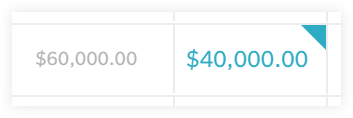
Note: The original value of the cell appears immediately to the left of the adjusted value in grey text. Adjusted values appear in blue text.
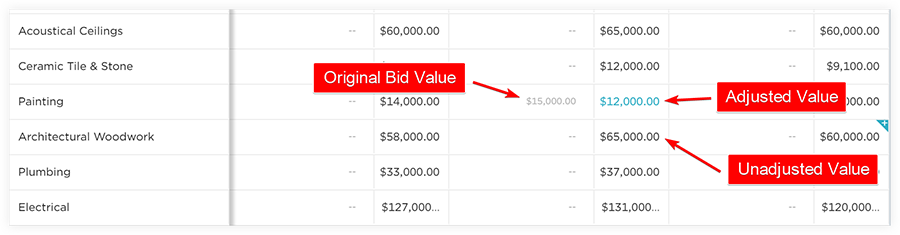
To remove an adjustment on a cell:
- Make sure the Adjustments tool is enabled.
- Click into a cell.
- Delete the contents of that cell.
- Press ENTER or RETURN on your keyboard.
Add and Manage Notes for a Cell
You can add a note on individual cells to provide additional information. For example, you might want to add a comment on a cell that you have adjusted so that your team knows why the value was changed. Notes are visible to all members of the Bid Room Team, and are NOT visible to bidders.
Note: A cell with a note on it is indicated by a triangle  in the top-right corner of the cell, as shown below.
To add a note to a cell:
- Hover your mouse over the cell you want to add a note to.
- Click the plus
 icon in the corner of the cell.
 - Enter your note into the text box.
- Click out of the text box to save the note.
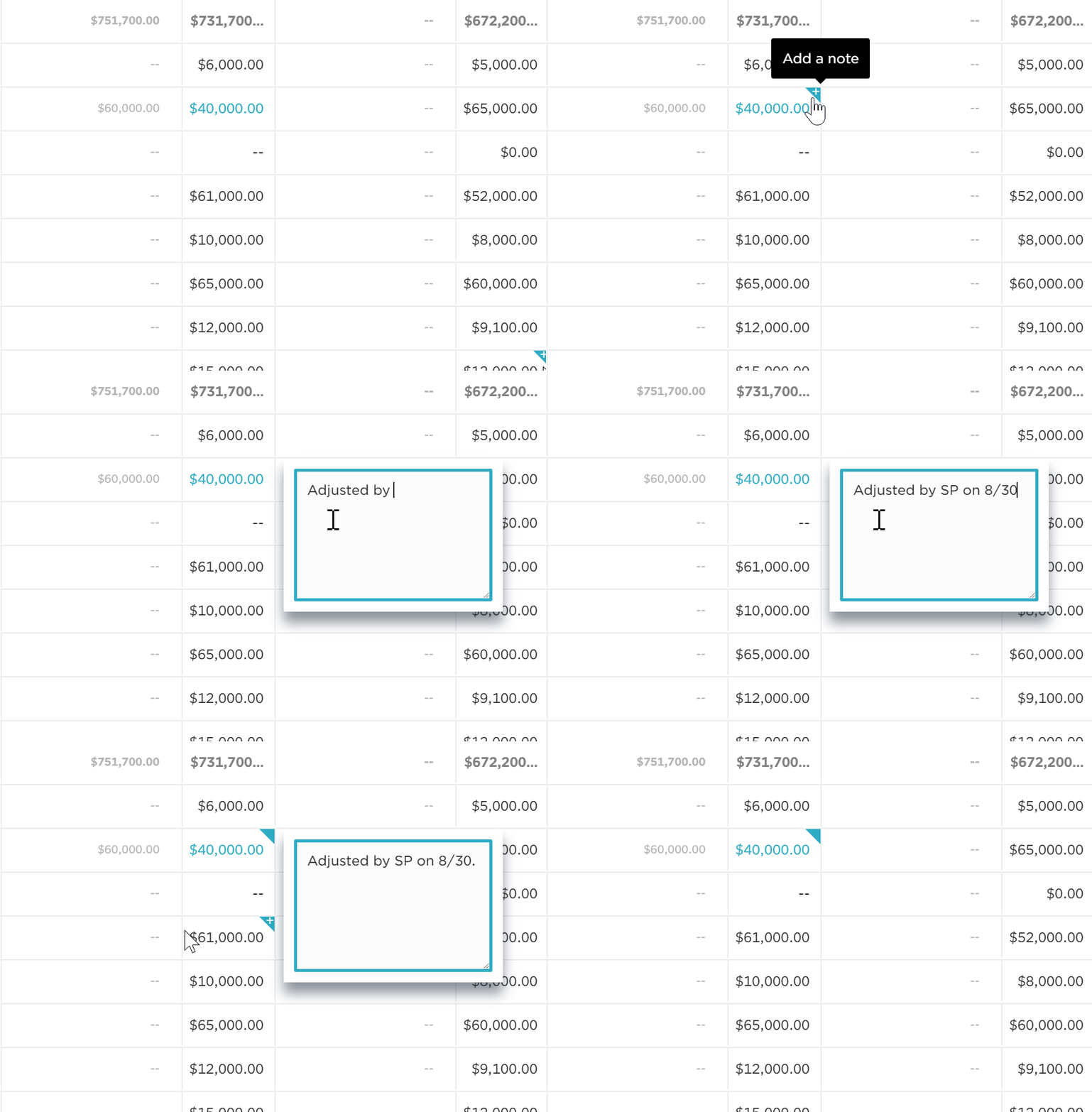
To edit a note on a cell:
- Hover over the cell you want to edit the note for.
- Click the triangle icon in the corner of the cell.
- Edit the note in the text box.
- Click out of the text box to save your note.
To remove a note from a cell:
- Hover over the cell you want to remove a note from.
- Click the triangle icon in the corner of the cell.
- Delete the contents of the note in the box that appears.
- Click outside of that box to save your changes.
Price Per Square Foot (Price/ft²)
Price per square foot breakdown is enabled by default. Each cell will have its price per square foot broken down by the square footage value that was entered on the Trade Setup page.
To edit the Square Footage value for a breakdown:
- Make sure Price/ft² is selected in the Tools drop-down menu.
- Click Edit next to Price/ft².
- Enter a new square footage value.
- Click Save.
Show Outliers
Outliers are cells whose values vary significantly (higher or lower) from the same item across all tender or vary significantly from other values in the same tender.
Note: As you make adjustments to cells, more outliers might appear or disappear to reflect the adjustments you make. The sensitivity for outliers can be adjusted from the Tools drop-down menu as explained below.
Note
Cells highlighted in YELLOW indicate outliers. In addition, if you increase the sensitivity for outliers in the Tools menu, the colour of existing outliers will turn a deeper shade of yellow.To adjust the sensitivity for outliers:
- Click the Tools drop-down menu.
- Adjust the outlier sensitivity slider.
Merge or Unmerge Alternates
By default, pricing for alternates does NOT factor into the total tender value. Instead, you must enable them to have their price factored in:
To include an alternate in the total tender value:
- Scroll to the Alternates section.
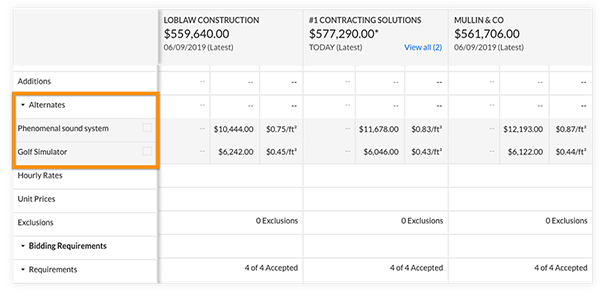
- Mark the checkbox next to an alternate to add it into the total tender value.
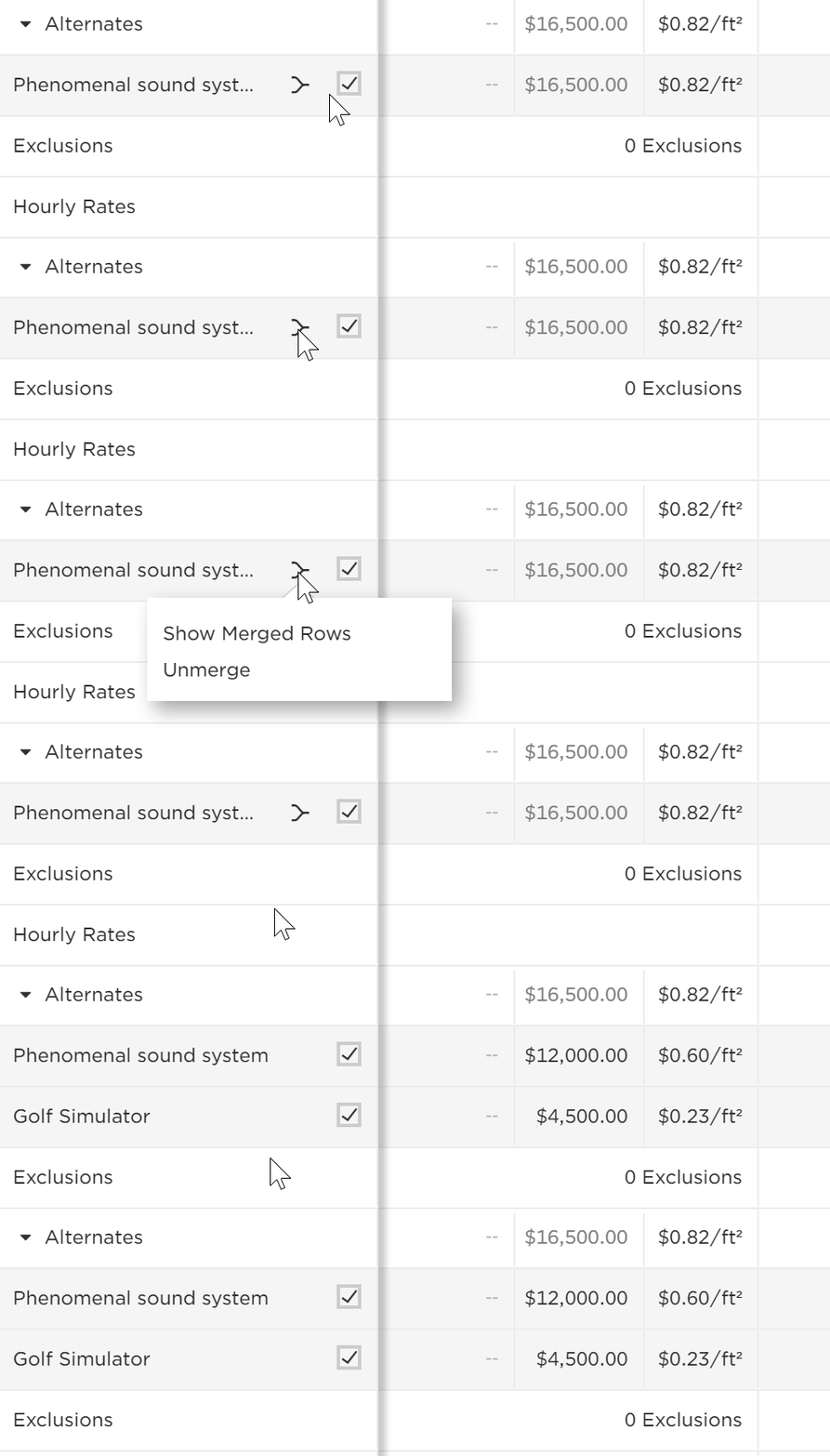
To merge alternates into one line item:
- Make sure Activate Merges is enabled in the Tools drop-down menu.
- Scroll down to the Alternates section.
- Click the Tools drop-down menu and select Merge Alternates.
- Mark the checkboxes to the alternates you want to merge.
- Click Merge to merge the alternates.
- Click Finish to finalize the merge.
Note: Merged alternates are indicated by a merge icon.
icon.
To unmerge alternates:
- Scroll down to the Alternates section.
- Click the merge icon.
- Click Unmerge.
Budget (Compare a Tender Against a Budget)
If you have a budget for each individual line item in your tender, you can compare your tender to those individual budgets.
Note: Budget values on this page are not pulled in from the project page and must be entered manually.
Step 1: Enable Budget Comparison:
- Click the Tools drop-down menu.
- Mark the checkbox next to Budget.
- Click Apply.
Note: After enabled, you can enter a budget amount into the budget column that appears.
Step 2: Enter a Budget Value in the Budget Column:
- Click on a cell that says 'Enter Budget' in the column.
- Type a value for that budget.
- Press ENTER or RETURN on your keyboard.
Optional: Edit or Remove a Budget Value:
- To edit a budget value:
- Click on a cell in the budget column.
- Adjust the value of the cell.
- Press ENTER or RETURN on your keyboard.
- To remove a budget value:
- Click on a cell in the budget column.
- Remove the contents of the cell.
- Press ENTER or RETURN on your keyboard.
Average Tender
You can generate an average tender to show what the average cost of each line item from each tender is.
To enable or disable the Average tender view:
- Click the Tools drop-down menu.
- Mark the checkbox next to Average to enable the average tender column.
OR
Clear the checkbox to disable the column. - Click Apply.
Synthetic Low Tender
You can generate an synthetic low tender to show a tender comprised of the lowest values from all of the tender. This is used to provide a sense of what the lowest possible cost for the tender might be.
To enable or disable the Synthetic Low tender view:
- Click the Tools drop-down menu.
- Mark the checkbox next to Synthetic Low to enable the synthetic low tender column.
OR
Clear the checkbox to disable the column. - Click Apply.
Export Tender Data
All of the data on the tender comparison page can be exported to an XLS or PDF file.
Important
When exporting, the export captures the CURRENT view of the tender comparison page. All adjustments, notes, view, columns and merges will appear in your exported report.To export the current tender comparison:
- Click the Export drop-down menu.
- Click XLS or PDF.
Note: The file will automatically begin downloading to your computer.