Apply a Folder Template for Project Documents in Portfolio Financials
Note
The information in this tutorial applies to accounts with the Portfolio Financials product in Procore. Reach out to your Procore point of contact for more information.Objective
To apply a folder template to the Documents section of the Project Page in Portfolio Financials.
Background
The Documents section of the Project Page in Portfolio Financials is where important documents related to the project can be stored and accessed. Folders can be created to better organize your documents.
Things to Consider
- Required User Permissions:
- 'Full Access' to the project or higher.
- Additional Information:
- You can only apply a folder template to a project that does not yet contain files or folders in the Documents section. If you want to change the folder template later, you must delete any files or folders first. See Delete a Document from the Project Page in Portfolio Financials and Delete a Document Folder from the Project Page in Portfolio Financials.
- Files are not carried into the applied folder template. To upload files for the project, see Add Documents to the Project Page in Portfolio Financials.
Prerequisites
- A folder template must be added to your organization's account by Procore. If you are a Company Admin for your Portfolio Financials account in Procore, you can request a folder template for your account by reaching out to your Procore point of contact or contacting Procore Support.
Steps
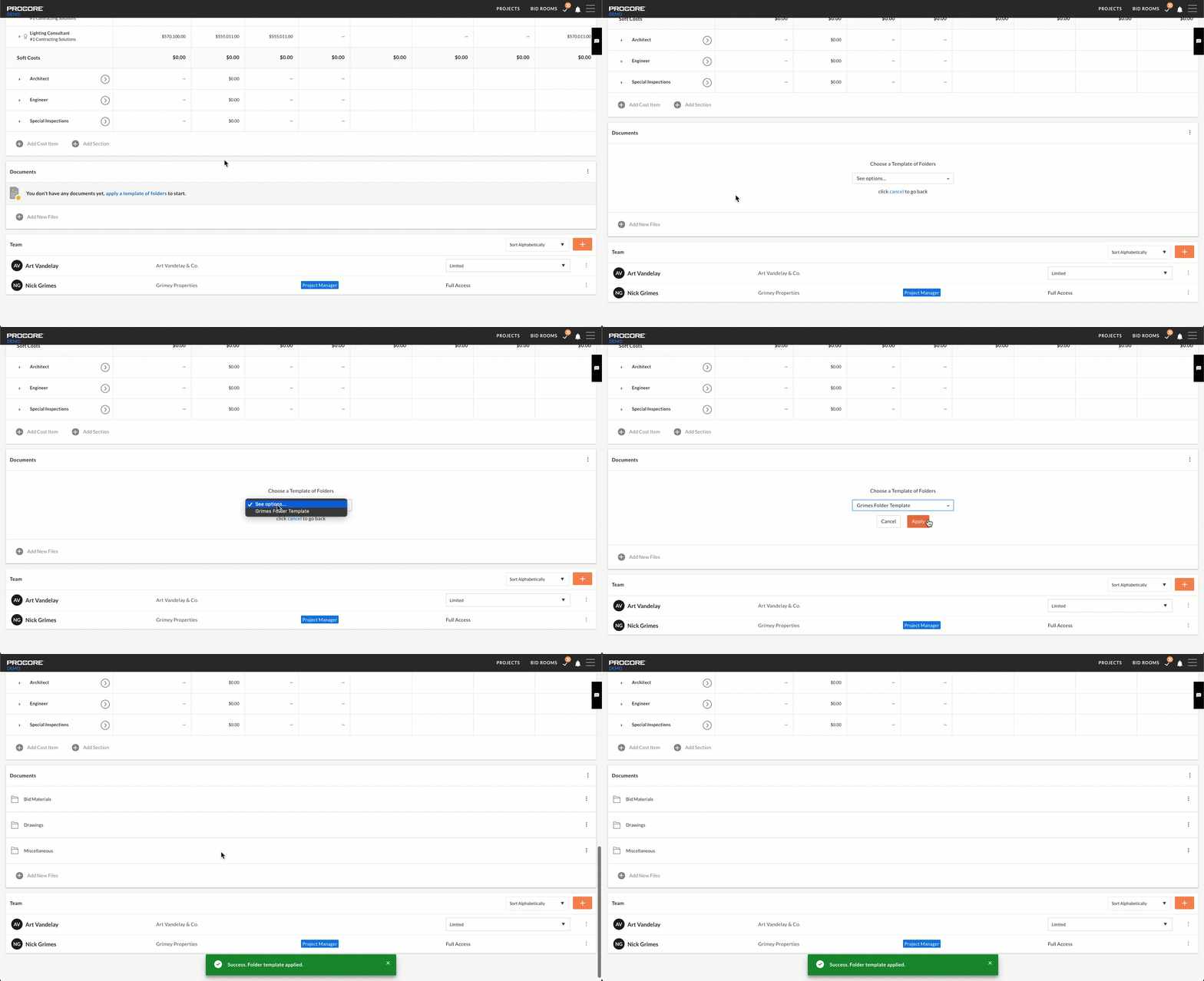
- Navigate to the relevant project and scroll to the Documents section.
- Click Apply a Template of Folders.
Note: This link will only show if there are no files or folders in the Documents section. - Select a template from the dropdown list.
- Click Apply.
Demo
 |