

Create a Budget Snapshot
In Beta
Periods for project status snapshots are currently in beta. To enable this feature, join the Budget: Periods on Project Status Snapshots beta program through Procore Explore.Background
The Budget tool's Create Snapshot feature lets users capture snapshots of the Budget or Forecasting tab in its current state. Once captured, users can immediately view or export it to CSV or PDF. To learn about the different snapshot types available, see What is the difference between an ad-hoc snapshot and a project status snapshot?
Things to Consider
-
Required User Permissions:
-
To create a snapshot, 'Standard' level permissions or higher on the project's Budget tool.
-
To view all snapshots created by any user, 'Read Only' level permissions or higher on the project's Budget tool.
-
-
Additional Information:
-
 Assign Financial Periods: You can assign only one project status snapshot to a specific financial period at a time.
 -
Reassign Financial Periods: When you assign an open financial period that is already assigned to another snapshot to a new snapshot, the previously assigned snapshot automatically changes to an Ad Hoc snapshot.
-
Prerequisites
-
Enable or Disable Financial Periods for Project Status Snapshots
- Create a Financial Period for Project Status Snapshots
- Change the Status of a Financial Period for Project Status Snapshots (ensuring the period status is set to 'Open')
Steps
Create a Snapshot from the Budget Tab
Users can create a Project Status Snapshot or an Ad Hoc Snapshot from the Budget tab. Only Project Status Snapshots are saved.
did you know?
You can now edit a snapshot's name, type, and description directly from the budget banner without needing to delete and recreate it. To learn more, see Edit a Budget Snapshot.
-
Navigate to the project's Budget tool.
-
Click the Budget tab.
-
Click + Create and select Snapshot.
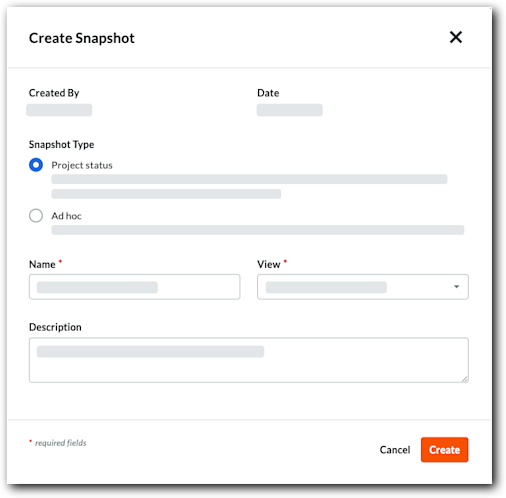
This opens the Create Snapshot window.
-
In the Create Snapshot modal, configure the following:
-
Snapshot Type. Select one of the following options:
-
Project status. Choose this option for official reporting, such as a monthly report that needs review.
-
Ad hoc. Choose this option for a simple snapshot.
-
-
Name. Enter a name for the snapshot.
-
Status. Select a status from the drop-down list.
Note: By default, the default status is selected. -
View. Select a budget view for the snapshot.
-
Period. Search for or select an open financial period from the drop-down list.
Note: The Period field is available only when financial periods are enabled. -
Description. Enter a description of the snapshot.
-
-
Click Create.
When complete, the Snapshot Created banner appears at the top of the page.

-
(Optional for Project Status Snapshots) If the selected period is already assigned to another snapshot, a confirmation dialog will appear:
-
Click Reassign period to confirm.
Note: This transfers the financial period to your new snapshot and converts the previously assigned snapshot into an Ad Hoc snapshot.
-
Create a Snapshot from the Forecasting Tab
Users can create an ad hoc snapshot from the Forecasting tab.
-
Navigate to the project's Budget tool.
-
Click the Forecasting tab.
-
Click Create Snapshot.
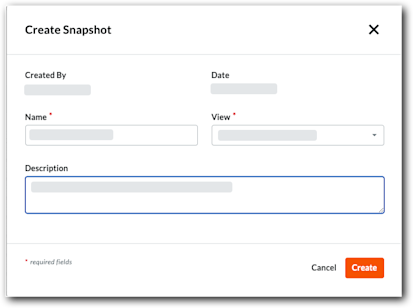
This opens the Create Snapshot window.
-
Enter the snapshot information:
-
Name. Enter a name for the snapshot.
-
View. Select a budget view for the snapshot.
-
Description. Enter a description of the snapshot.
-
-
Click Create.
When complete, the Snapshot Created banner appears at the top of the page.