

Initiate a Project Connection
Background
Only the users at the Receiving company account can initiate a connection. Sending company accounts can choose to automatically approve connections, or require review to manually accept or reject a Receiving project's request to connect. See Configure Connection Approval Settings. Projects can be disconnected by the Sending or Receiving account at any time.
Things to Consider
- Required User Permissions
- Addtional Information:
-
Only the receiving company account can initiate a connection with a sending account's project.
-
Both sending and receiving accounts support unlimited connections per tool:
-
Receiving accounts can request connections with as many sending projects as needed.
-
Sending accounts can share data with as many receiving projects as needed.
-
-
For RFIs and Submittals, a project can act as a Receiver to collect items from a Sending partner while also acting as a Sender to pass its own items to a Receiving partner.
-
Only locally created records originated within your project can be sent to connected partners. You cannot forward External Items (records received from another connected project) to a third party or connected project.
-
-
For both sending and receiving accounts, users on the Connection Manager tool email distribution list are notified of new connections and connection requests (if review is required). See Connection Manager: Configure Advanced Settings.
-
GovCloud accounts will not be able to participate in a project connection.
-
If you are connecting to a project within the same company, look for the 'Current Company' section in the 'Sending Company' dropdown to select your company's name.
-
Connections apply strictly to locally originated data. You cannot forward external items received from another party to a third project.
-
Steps
-
Navigate to the project's Connection Manager tool.
-
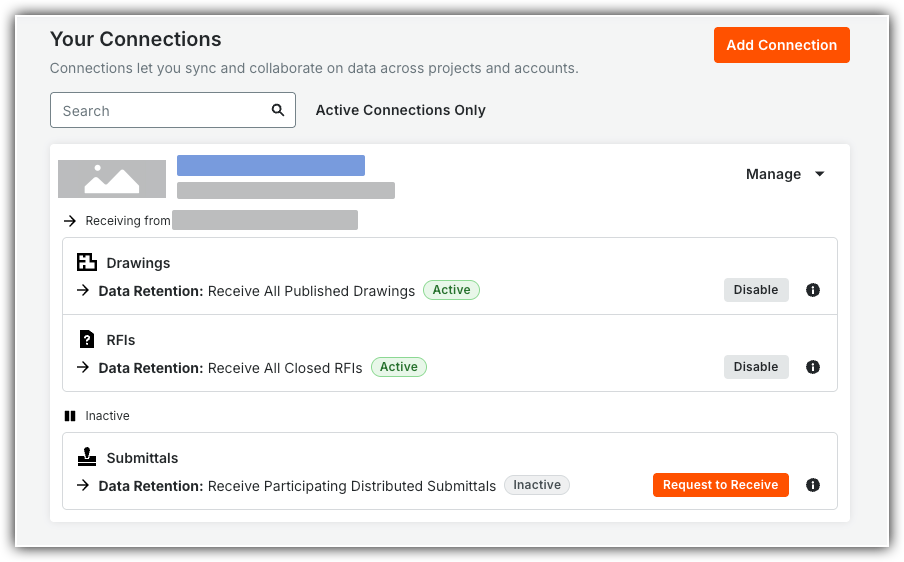
Click Add Connection.
-
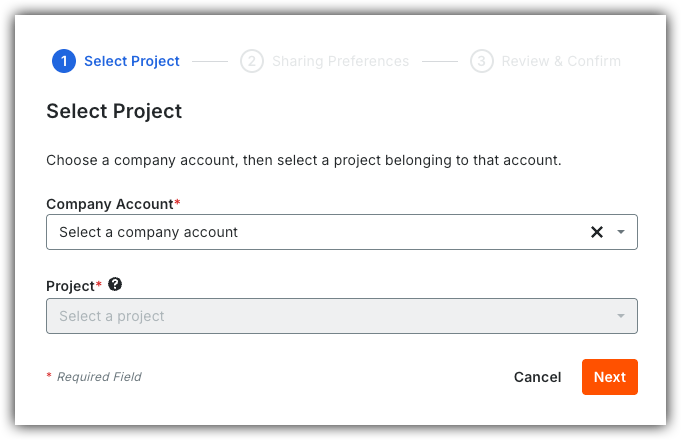
Select the sending company and project.
-
Click Next.
-
In the 'Sharing Preferences' step, mark the checkboxes for the tools you want to receive data from:
-
All Published Drawings
-
Receive All Published Drawings.
-
-
All Closed RFIs
-
Receive All Closed RFI.
-
-
Participating Distributed Submittals
-
All Distributed Submittals.
-
Participating Distributed Submittals Only.
-
Receive synced copies only when someone from your company is a: Submittal Manager, Submittal Reviewer, Workflow Participant, or Distribution List Member ).
-
-
-
-
Select at least one feature for this connection, then click Next.
-
Review the Considerations, then click Confirm Connection to initiate the project connection.
-
If the sending company chose to automatically approve connections, your projects connect instantly.
-
If the sending company's settings require manual review, Procore sends a request to the sending company for review.
-
-
Repeat these steps for each additional project you want to connect.