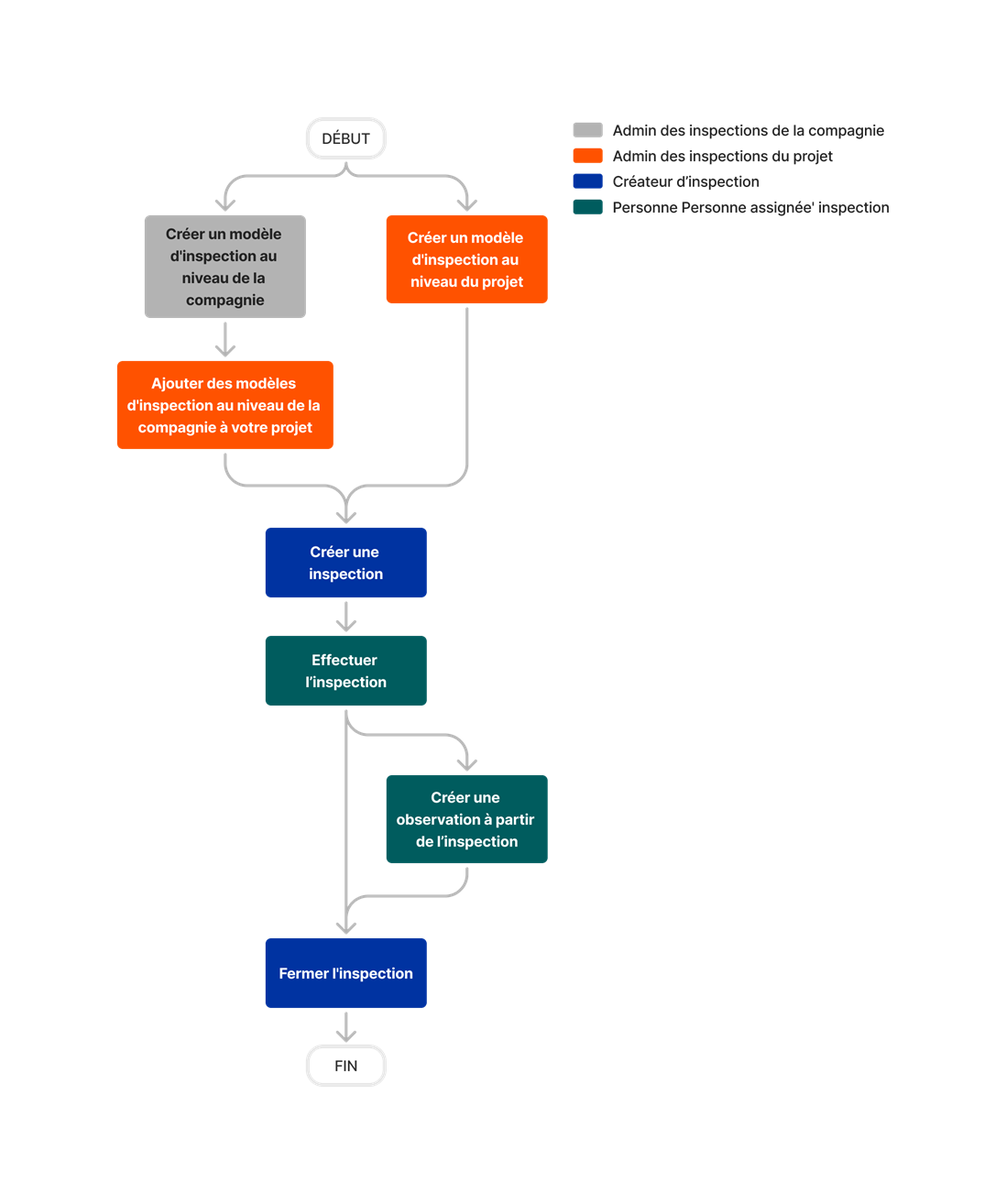
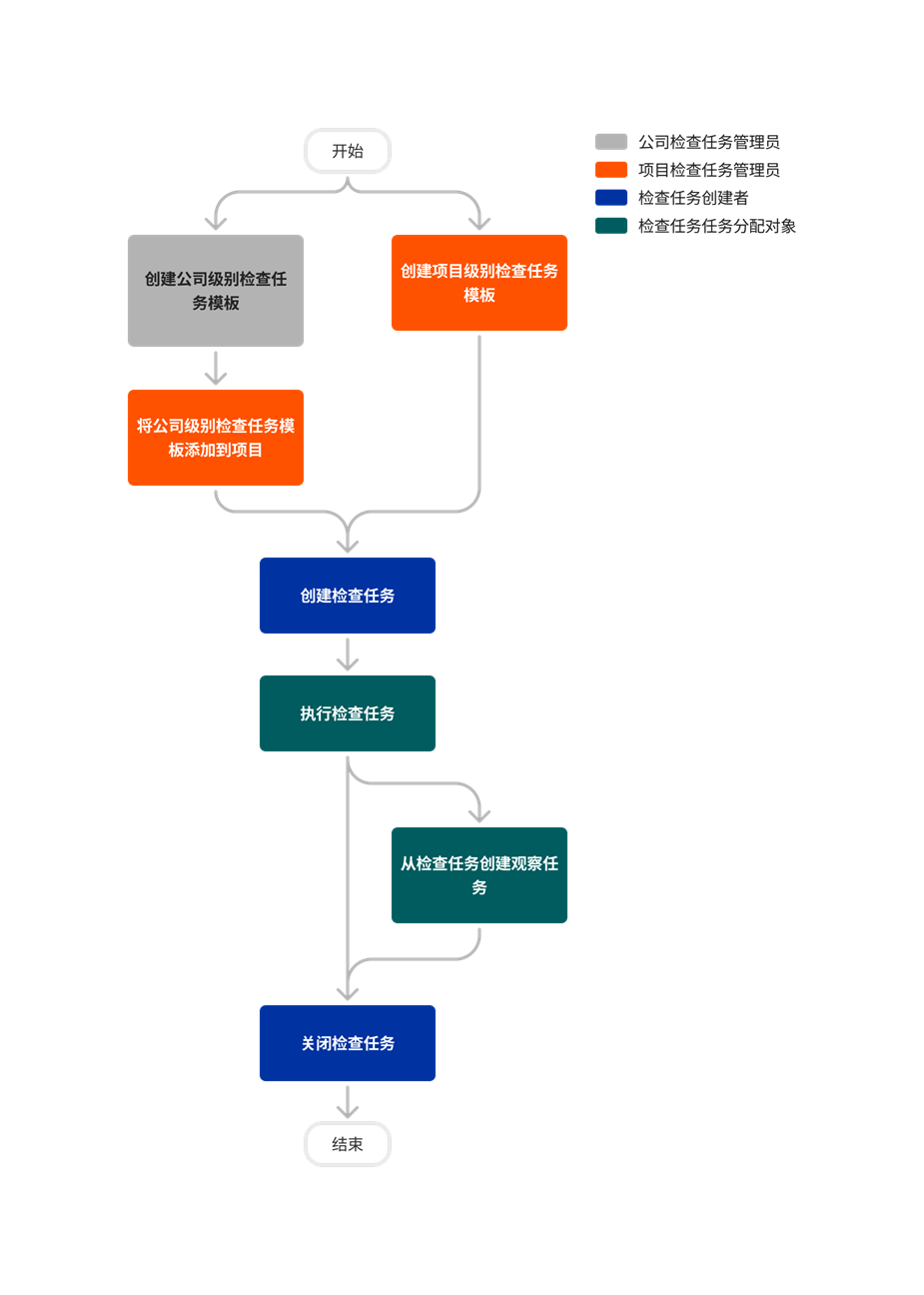
The Inspections tool provides your organization with an easy way to create a comprehensive set of boilerplate inspection checklists that can be reused and customized on individual construction projects.
Popular Tutorials (view all)
Top FAQ (view all)
There are no items that match your search query.
To browse and search all Procore training videos, visit our video library.
Video content may not accurately reflect the current state of the system, and/or it may be out of date.


Learn which user permissions are required to take the described actions in this tool.
Some actions that impact this tool are done in other Procore tools.
| | The action is available on Procore's Web, iOS, and/or Android application.
Users can take the action with this permission level.
Users can take this action with this permission level AND one or more additional requirements, like granular permissions.
What granular permissions are available for the Project level Inspections tool?
|
Inspections Tutorials |
None |
Read Only |
Standard |
Admin |
Notes |
|---|---|---|---|---|---|
|
Add a Contact when Performing an Inspection |
|
|
Users must also have 'Read Only' level permissions or higher to the project's Directory tool with the 'Create Contacts (Where Available)' granular permission |
||
|
Add a Related Item to an Inspection |
|
||||
|
Add Comments to an Inspection Item |
|
|
|||
|
Add Company Level Inspection Templates to Your Project |
|
||||
|
Add Conditional Logic to a Project Level Inspection Template |
|
||||
|
Add Attachments to Inspection Items |
|
|
|||
|
Add Signers to an Inspection |
|
|
|||
|
Add Signers to an Inspection Item |
|
|
|||
|
Bulk Create Inspections |
|
|
|
||
|
Clone a Project Inspection Template to a Company |
|
||||
|
Close an Inspection You Created |
|
|
|||
|
Close Any Inspection |
|
||||
|
Configure Advanced Settings: Inspections |
|
||||
|
Create a New Location for an Inspection |
|
|
The 'Only allow locations to be created in the Location Manager' setting must be disabled in the Locations settings of the project's Admin tool. |
||
|
Create an Inspection |
|
|
|||
|
Create an Inspection Schedule |
|
|
|
||
|
Create a Reinspection |
|
|
|||
|
Create a Project Level Inspection Template |
|
||||
|
Create an Observation from an Inspection |
|
|
Users must also have 'Standard' level permission or higher on the Observations tool. |
||
|
Create Project-Only Equipment |
|
|
Users must also have one of the following permissions to the project's Equipment tool:
|
||
|
Delete an Inspection |
|
||||
|
Delete an Inspection Template |
|
||||
|
Edit a Project Level Inspection Template |
|
||||
|
Edit an Inspection Schedule |
|
|
|
||
|
Edit an Inspection You Created |
|
|
|||
|
Edit Any Inspection |
|
||||
|
Email Inspections |
|
|
|||
|
Export an Individual Inspection |
|
|
|
||
|
Perform an Inspection |
|
|
|||
|
Retrieve an Inspection From the Recycle Bin |
|
||||
|
Search and Filter for Inspections |
|
|
|
||
|
Sign a Completed Inspection |
|
|
|||
|
Sign an Inspection Item |
|
|
|||
|
View Inspection Schedule |
|
|
|
||
|
View Project Inspection Insights Web |
|
|
|
||
|
View Project Level Inspections (Not Private) |
|
|
|
||
|
View Project Level Inspections (Private) |
|
|
|
'Read Only' and 'Standard' level users must also be the Inspection's Creator, Assignee, Point of Contact, Requested Signature, or a member of the Distribution List. |
|
|
View the Activity Feed of Items in an Inspection |
|
|
|
||
|
View Change History of an Inspection |
|
||||
|
View Signatures on an Inspection |
|
|
|
Below are the notable changes to the Project level Inspections tool.
Users with the appropriate permissions can now create multiple copies of an Inspection at once, streamlining the process and reducing administrative time. The Inspections Bulk Create feature empowers teams to efficiently generate inspections and leverage them as tools for tracking quality progress throughout the project lifecycle.
Procore has enhanced the reinspection process to help you track quality and safety more efficiently. You can now reinspect closed inspections, carrying over original responses and linking the new inspection for streamlined reporting. To learn more, see Create a Reinspection.
When creating an inspection schedule, you can select a piece of equipment to be inspected. See Create an Inspection Schedule.
You can filter inspections and inspection schedules by equipment. See Search and Filter Inspections and Search and Filter Inspection Schedules.
Procore has introduced conditional logic to Company and Project level inspection templates, enhancing the flexibility and efficiency of inspections. Inspections Conditional Logic allows users to configure inspection line items so that responses control the display of subsequent items, reducing the need for multiple templates and improving accuracy. To learn more, see What is conditional logic within the Inspections tool?
Procore has streamlined the deployment of inspection templates from the project level to the company level, introducing a 'Clone to Company' feature for easy assignment. This feature ensures that valuable insights and efficient processes discovered in one project can be quickly shared and adopted across the entire company, enhancing overall project quality and execution. To learn more, see Clone a Project Inspection Template to a Company.
When viewing the list of Inspection templates, two new columns show which templates require observations and photos, and for how many items. This gives you additional visibility into how your templates are configured. See Create a Project Level Inspection Template.
You can now do the following with inspection line items: require a photo and/or observation based on selected responses, add references such as drawings, photos, forms, and more, and lastly, you can now add signatures to an inspection line item. These updates to the Inspections tool focus on enhancing flexibility, granularity and accountability.
You can now add letters and special characters to inspection numbers when creating or editing an inspection. This will enhance your ability to efficiently find and identify inspections. See Create a Project Level Inspection for details.
Inspection templates have been updated with new features to improve consistency, efficiency, and clarity. See Inspections: Template Improvements for more information.
Email and push notification configurations for the Project level Inspections tool have been added to inform users of inspection progress in real time. Read the Announcement and the tutorial to Configure Advanced Settings: Project Level Inspections.