
Search for and Filter Project Level Timesheets


Search for and Filter Project Level Timesheets
Objective
To use the Project level Timesheets tool's search and filter settings to find a timesheet.
Background
After you create timesheets, you can apply search and filter options to organize your information on the page.
Things to Consider
Steps
Search for a Timesheet
- Navigate to the company's Timesheets tool.
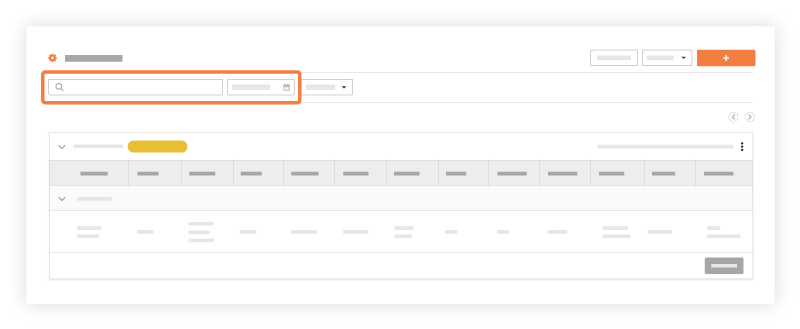
- Type a keyword or phrase in the Search box and/or select a Work Week.
The search query's scope includes the following fields:- Employee Name
- Location
- Cost Code
- Click the
 icon or press ENTER on your keyboard to initiate the search.
Add Filters
- Navigate to the company's Timesheets tool.
- Click the Add Filter drop-down menu.
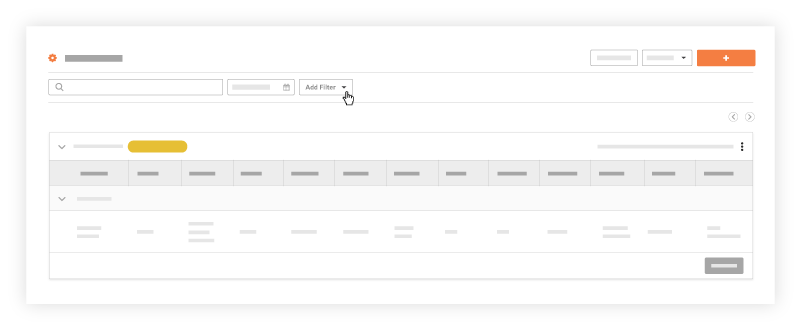
- Add one (1) or more of these filters:
Tip
Don't see the timesheet you are looking for? You can apply more than one filter to further narrow the display results.
- To clear a filter, click the X on the Add Filters menu.
- To clear all filters, click Clear All.
- Approval Status
- Billable
- Cost Code
- Created By
- Location
- Projects
- Sub Job
- Time Type
- Classification
See Also
If you would like to learn more about Procore's timesheet management software and how it can help your business, please visit our construction timesheet software product page  .
.
.