Daily Log
Daily Log Workflow
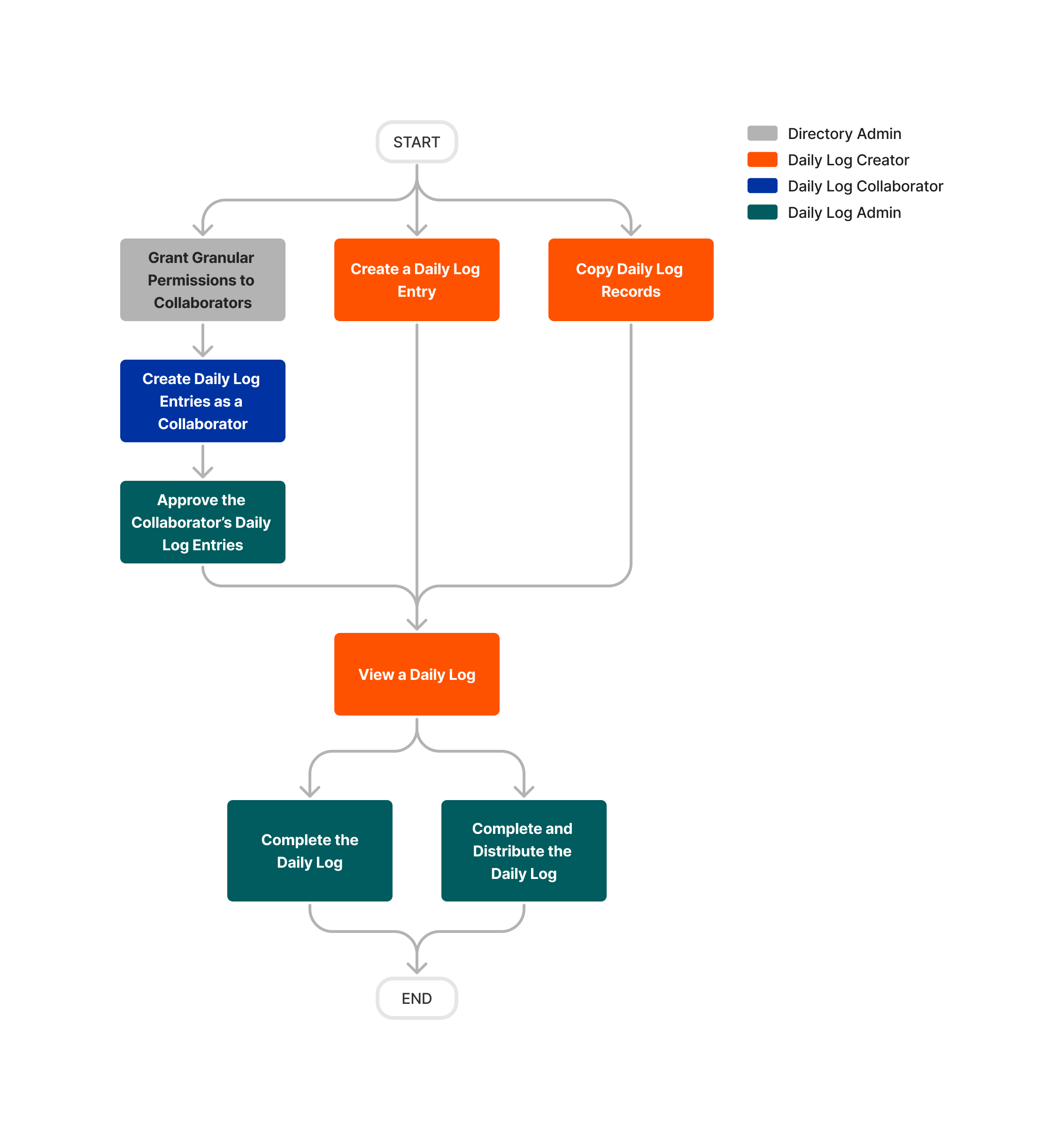


Daily Log
Important
Permissions
| | The action is available on Procore's Web, iOS, and/or Android application.
 Users can take the action with this permission level.
 Users can take this action with this permission level AND one or more additional requirements, like granular permissions.
What granular permissions are available for the project's Daily Log tool?
|
Daily Log Tutorials |
None |
Read Only |
Standard |
Admin |
Notes |
|---|---|---|---|---|---|
|
Add a Photo to a Daily Log Entry so that it Populates in the Photos Tool |
|
|
|
||
|
Add a Related Item to a Daily Log Entry |
|
||||
|
Approve Any Daily Log Entry Created by Collaborators |
|
||||
|
Approve Copied Daily Log Entries Created by Collaborators
|
|
|
|||
|
Configure Advanced Settings: Daily Log |
|
||||
|
Copy a Daily Log |
|
|
|
|
|
|
Create a Daily Log Entry from the Calendar View |
|
|
|||
|
Create a New Location for an Entry |
|
|
The 'Only allow locations to be created in the Location Manager' setting must be disabled in the Locations settings of the project's Admin tool. |
||
|
Create a Project-Only Equipment |
|
|
Users must also have one of the following permissions to the project's Equipment tool:
|
||
|
Create Accident Log Entries |
|
|
|||
|
Create Accident Log Entries as a Collaborator (Pending) |
|
|
The granular permission for 'Collaborator Entry Only' must be enabled in a global permissions template before the option is available in the Daily Log tool settings. |
||
|
Create Phone Call Entries |
|
|
|||
|
Create Phone Call Entries as a Collaborator (Pending) |
|
|
The granular permission for 'Collaborator Entry Only' must be enabled in a global permissions template before the option is available in the Daily Log tool settings. |
||
|
Create Daily Construction Report Log Entries |
|
|
|||
|
Create Daily Construction Report Log Entries as a Collaborator (Pending) |
|
|
The granular permission for 'Collaborator Entry Only' must be enabled in a global permissions template before the option is available in the Daily Log tool settings. |
||
|
Create Daily Log Entries as a Collaborator |
|
|
The granular permission for 'Collaborator Entry Only' must be enabled in a global permissions template before the option is available in the Daily Log tool settings. |
||
|
Create Delay Entries |
|
|
|||
|
Create Delay Entries as a Collaborator (Pending) |
|
|
The granular permission for 'Collaborator Entry Only' must be enabled in a global permissions template before the option is available in the Daily Log tool settings. |
||
|
Create Delivery Entries |
|
|
|||
|
Create Delivery Entries as a Collaborator (Pending) |
|
|
The granular permission for 'Collaborator Entry Only' must be enabled in a global permissions template before the option is available in the Daily Log tool settings. |
||
|
Create Dumpster Entries |
|
|
|||
|
Create Dumpster Entries as a Collaborator (Pending) |
|
|
The granular permission for 'Collaborator Entry Only' must be enabled in a global permissions template before the option is available in the Daily Log tool settings |
||
|
Create Equipment Entries |
|
|
|||
|
Create Equipment Entries as a Collaborator (Pending) |
|
|
The granular permission for 'Collaborator Entry Only' must be enabled in a global permissions template before the option is available in the Daily Log tool settings |
||
|
Create Inspection Entries |
|
|
|||
|
Create Inspection Entries as a Collaborator (Pending) |
|
|
The granular permission for 'Collaborator Entry Only' must be enabled in a global permissions template before the option is available in the Daily Log tool settings |
||
|
Create Manpower Entries |
|
|
|||
|
Create Manpower Entries as a Collaborator (Pending) |
|
|
The granular permission for 'Collaborator Entry Only' must be enabled in a global permissions template before the option is available in the Daily Log tool settings |
||
|
Create Note Entries |
|
|
|||
|
Create Note Entries as a Collaborator (Pending) |
|
|
The granular permission for 'Collaborator Entry Only' must be enabled in a global permissions template before the option is available in the Daily Log tool settings |
||
|
Create Observed Weather Entries |
|
||||
|
Create Plan Revision Entries |
|
|
|||
|
Create Plan Revision Entries as a Collaborator (Pending) |
|
|
The granular permission for 'Collaborator Entry Only' must be enabled in a global permissions template before the option is available in the Daily Log tool settings |
||
|
Create Productivity Entries |
|
|
|||
|
Create Productivity Entries as a Collaborator (Pending) |
|
|
The granular permission for 'Collaborator Entry Only' must be enabled in a global permissions template before the option is available in the Daily Log tool settings |
||
|
Create Quantity Entries |
|
|
|||
|
Create Quantity Entries as a Collaborator (Pending) |
|
|
The granular permission for 'Collaborator Entry Only' must be enabled in a global permissions template before the option is available in the Daily Log tool settings |
||
|
Create Safety Violation Entries |
|
|
|||
|
Create Safety Violation Entries as a Collaborator (Pending) |
|
|
The granular permission for 'Collaborator Entry Only' must be enabled in a global permissions template before the option is available in the Daily Log tool settings |
||
|
Create Scheduled Work Entries |
|
|
|||
|
Create Scheduled Work Entries as a Collaborator (Pending) |
|
|
The granular permission for 'Collaborator Entry Only' must be enabled in a global permissions template before the option is available in the Daily Log tool settings |
||
|
Create Timecard Entries for Any User |
|
||||
|
Create Timecard Entries for Yourself |
|
|
You must also be marked as an employee of your company. |
||
|
Create Visitor Entries |
|
|
|||
|
Create Pending Visitor Entries as a Collaborator |
|
|
|
||
|
Create Waste Entries |
|
|
|||
|
Create Pending Waste Entries as a Collaborator |
|
|
The granular permission for 'Collaborator Entry Only' must be enabled in a global permissions template before the option is available in the Daily Log tool settings |
||
|
Delete Any Daily Log Item |
|
Entries cannot be deleted on a day that has been marked as complete. If an entry needs to be deleted, an 'Admin' user can Re-Open a Daily Log. |
|||
|
Bulk Delete Daily Log Entries |
|
|
Entries cannot be deleted on a day that has been marked as complete. If an entry needs to be deleted, an 'Admin' user can Re-Open a Daily Log. |
||
|
Delete a Daily Log Item You Created |
|
|
Entries cannot be deleted on a day that has been marked as complete. If an entry needs to be deleted, an 'Admin' user can Re-Open a Daily Log. |
||
|
Delete a Daily Log Item You Created as a Collaborator |
|
|
Entries cannot be deleted after they are approved by a Daily Log Admin. |
||
|
Delete Related Items from Daily Log Entries |
|
||||
|
Edit Any Daily Log Item |
|
||||
|
Edit a Daily Log Item You Created |
|
|
|||
|
Edit a Daily Log Item You Created as a Collaborator |
|
|
Entries cannot be edited after they are approved by a Daily Log Admin. |
||
|
Email a Daily Log |
|
|
|||
|
Enter Logs for a Previous Day |
|
|
|||
|
Enter Logs for a Previous Day as a Collaborator |
|
|
|||
|
Export a Daily Log as PDF |
|
|
|
||
|
Mark a Daily Log as Complete |
|
||||
|
Reject Any Daily Log Entry Created by Collaborators |
|
||||
|
Reopen a Daily Log |
|
||||
|
Resubmit a Daily Log Entry as a Collaborator |
|
|
|||
|
Search and Filter Daily Logs |
|
|
|
||
|
Search and Filter Daily Log Entries You Created as a Collaborator |
|
|
|||
|
Upload Photos to the Daily Log from the Photos Tool |
|
|
Users also need 'Standard' permissions or higher on the project's Photos tool. |
||
|
Upload Photos to the Daily Log from your Device |
|
|
|||
|
View and Attach Files to a Daily Log |
|
|
|||
|
View Approved Daily Logs |
|
|
|
This excludes the ability to view the change history log. See below for more details about the View Change History Log permission. |
|
|
View Daily Logs You Created as a Collaborator |
|
|
The granular permission for 'Collaborator Entry Only' must be enabled in a global permissions template before the option is available in the Daily Log tool settings. |
||
|
View Daily Logs Created by Users at your Company as a Collaborator |
|
|
The granular permission for 'Collaborator Entry Only' must be enabled in a global permissions template before the option is available in the Daily Log tool settings. |
||
|
View 'Pending' Daily Log Entries |
|
|
'Standard' level users can only view 'Pending' Daily Construction Report and Manpower logs if they were added through the 'Missing Company' feature. |
||
|
View Change History Log |
|
|
|||
|
View Daily Log Notes Report (Single Tool Report) |
|
|
|
Users also need 'Read Only' level permissions or higher on the project's 360 Reporting tool. |
|
|
View Daily Logs in the Calendar View |
|
|
|||
|
View Project Daily Log Insights Web |
|
|
|

